How can I manage my Calendesk subscription?
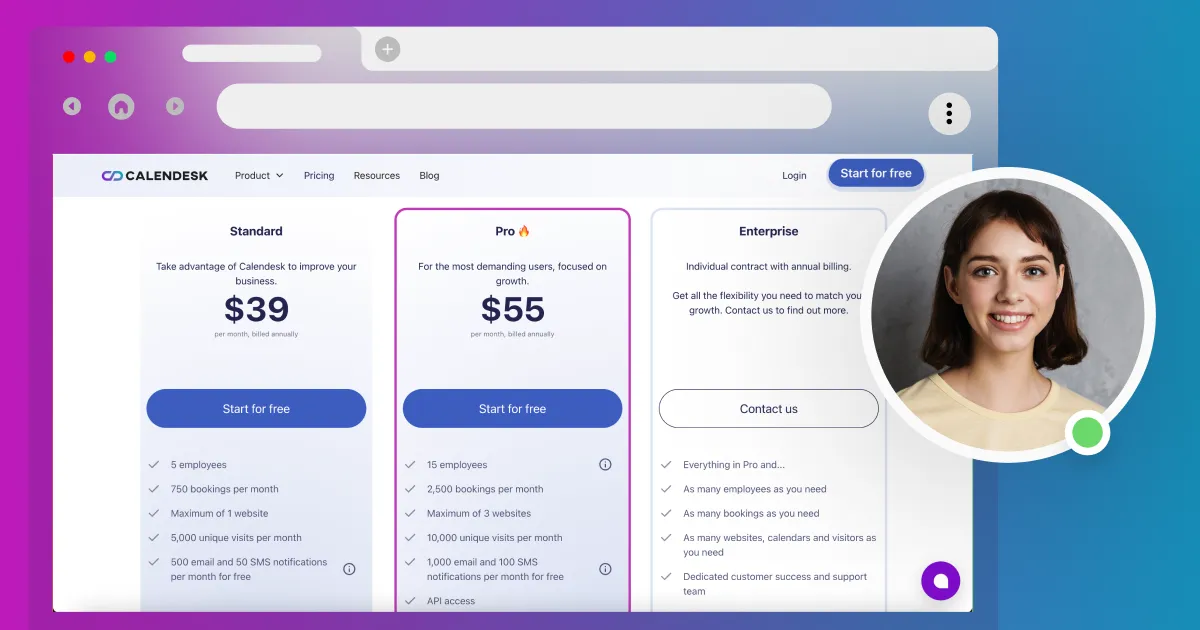
This article shows you how to change your Calendesk plan, pick add-on packages and cancel your subscription. You do all of it yourself in the panel, under Billing. Only the account administrator can change or cancel the plan.
Where can I see my plan?
Go to Billing – Subscription. At the top you'll see your Current plan and the date it renews. Next to it are two buttons: Change plan and Cancel. During the trial period you'll see Select instead of Change plan.
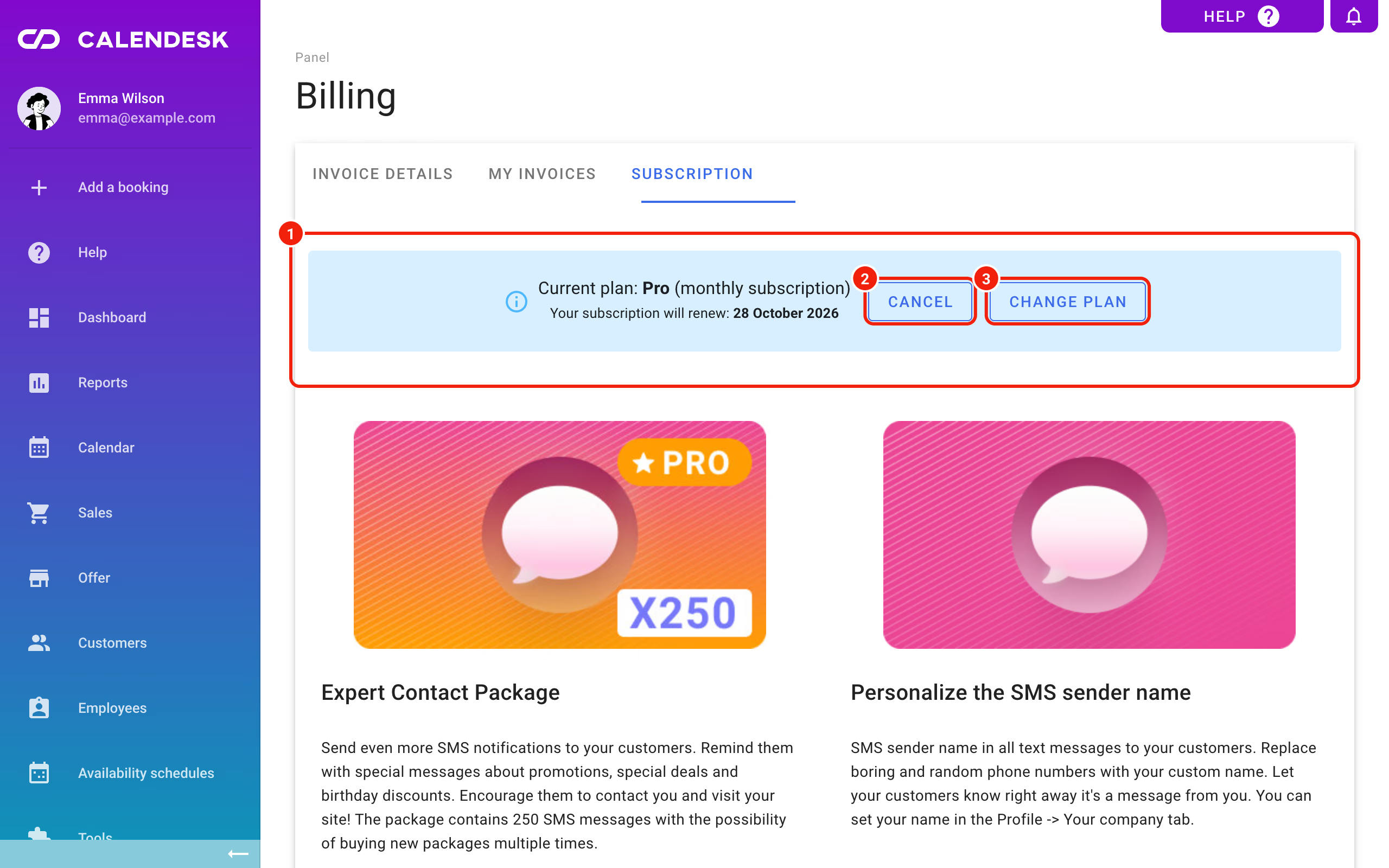
Below it are your plan's add-on packages. You can turn them on and off at any time.
How do I change my Calendesk plan?
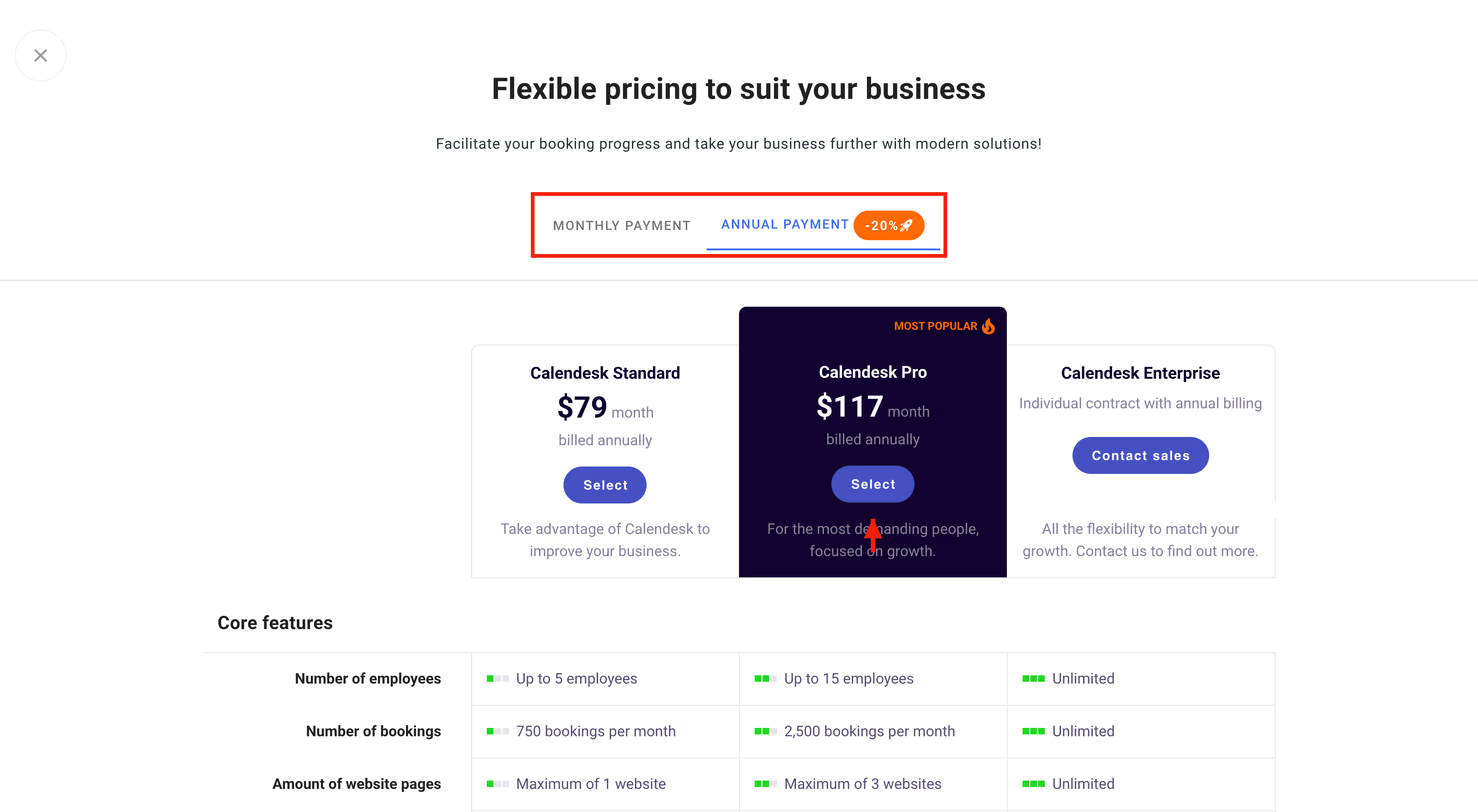
- In Billing – Subscription, select Change plan.
- Choose how you want to pay: Monthly payment or Annual payment. Paying yearly costs less per month.
- Click Select under the plan you want.
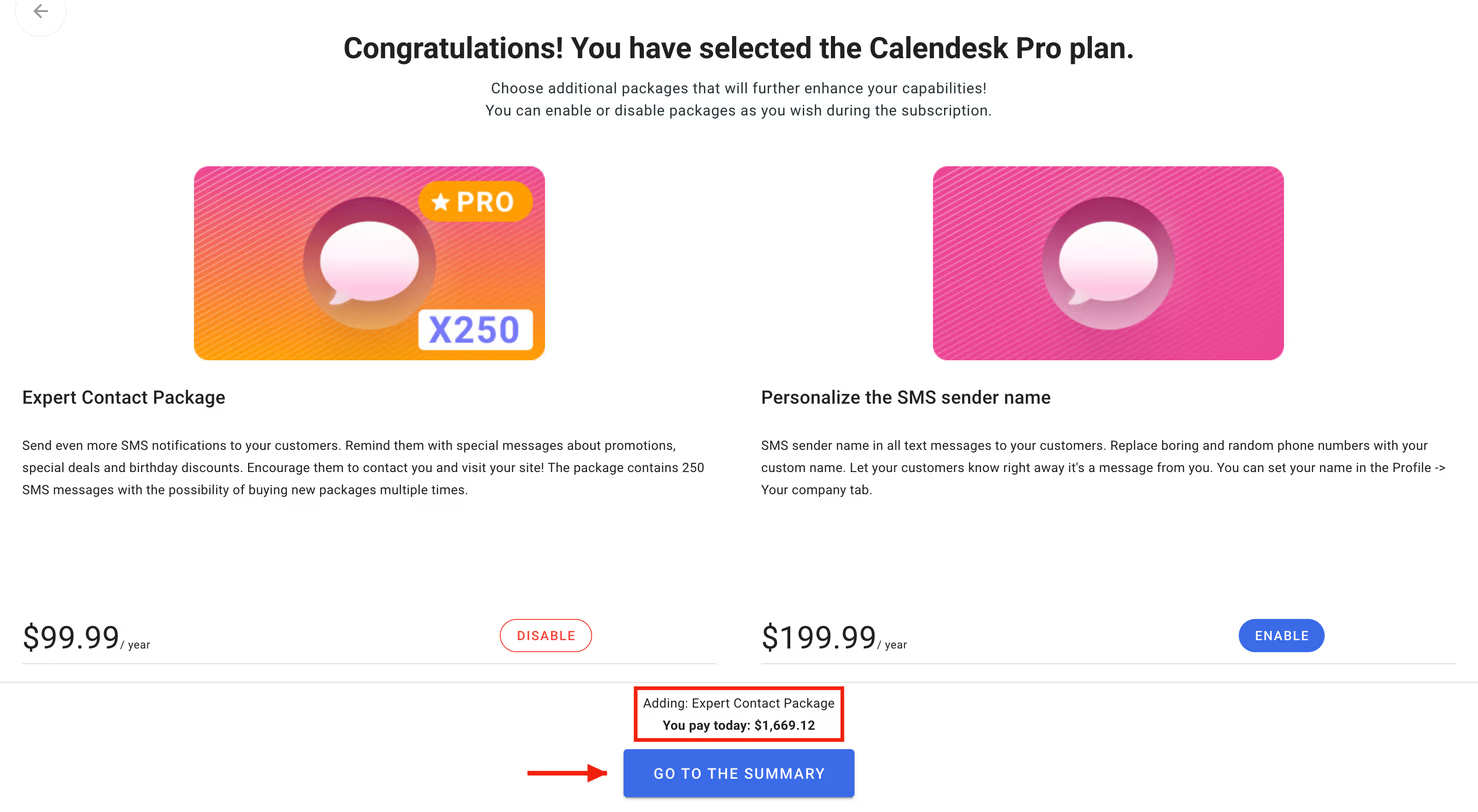
On the next screen you can pick add-on packages. At the bottom you'll see a summary of your changes: what you're adding, changing and turning off, and what you pay today. When it all looks right, select Go to the summary.
In the Order summary, the What do you pay today? section shows the exact amount before you pay. Your plan changes once you click Activate the plan.
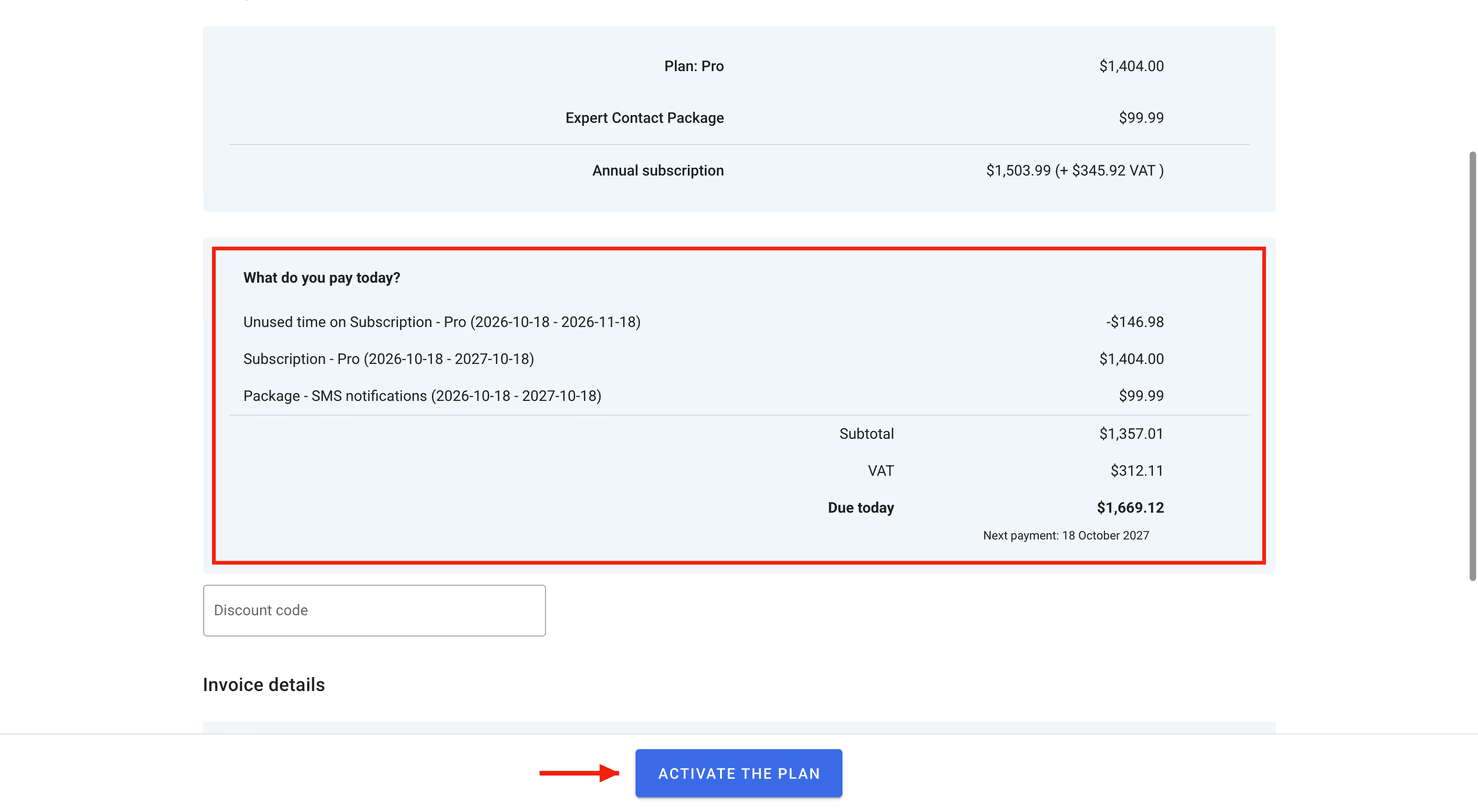
How are amounts calculated when you change plans mid-period?
- A higher plan or a new package: you only pay the difference for the time left in the current billing period.
- A lower plan: the difference goes to your Calendesk balance and covers your next payments. It isn't refunded to your bank account. While the balance lasts, it pays your renewals, and your card is charged again only once it runs out.
If you have an unpaid invoice, you can't change your plan until it's paid.
How do I cancel my Calendesk subscription?
You can cancel at any time. Paid features keep working until the end of the period you've paid for. To avoid being charged for the next period (month or year), cancel before your renewal date.
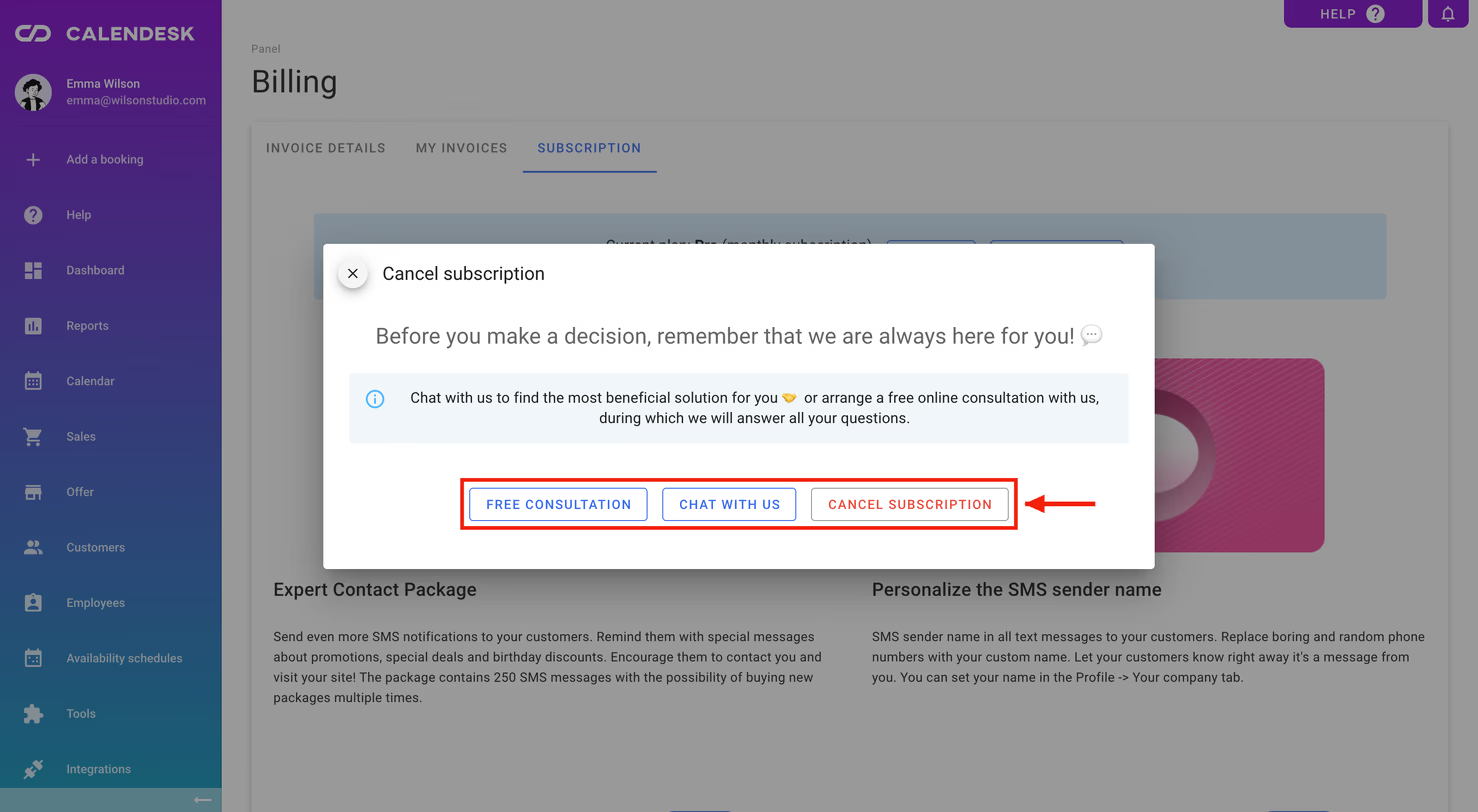
- In Billing – Subscription, select Cancel.
- A window suggests a quick talk first: Free consultation or Chat with us. Often there's a fix that doesn't mean leaving. If you still want to cancel, select Cancel subscription.
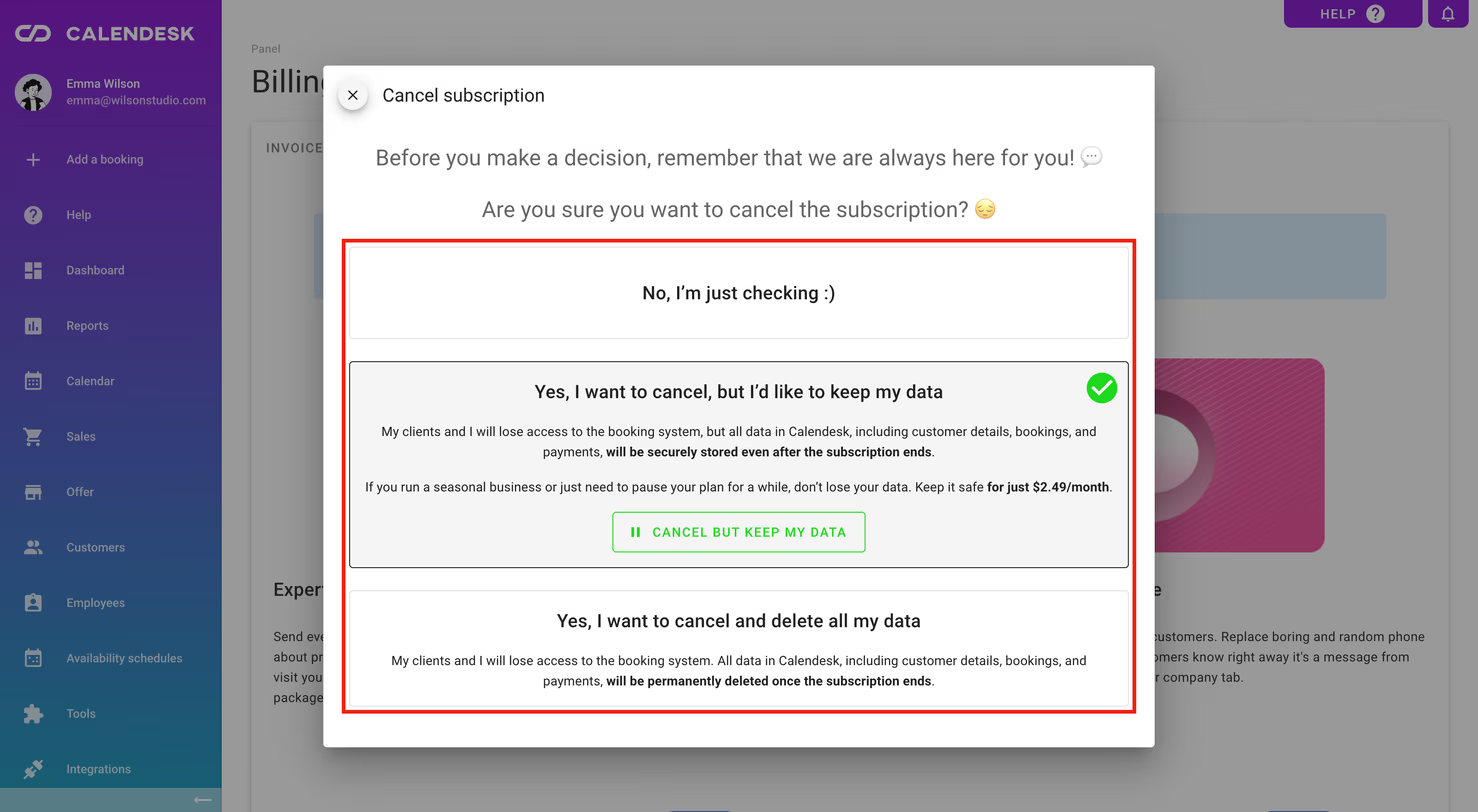
Now decide what happens to your data:
- Yes, I want to cancel, but I’d like to keep my data: you and your clients lose access to the booking system, but your client, booking and payment data stays stored. Handy for seasonal businesses or a break. Keeping the data costs a small monthly fee, shown in this window. Select Cancel but keep my data.
- Yes, I want to cancel and delete all my data: once the subscription ends, all data from the booking system is permanently deleted. Pick a reason for leaving, then select Cancel and delete my data.
- No, I’m just checking closes the window without changes.
Finally, you confirm your choice. After cancelling, Billing – Subscription shows when your plan ends and that it won't renew (or, if you kept your data, that the plan moves to data storage). If you change your mind before the period ends, use Select a plan to activate a plan again.
On a trial there's nothing to cancel: if you don't choose a plan, the trial simply expires.
Your Calendesk invoices are in Billing – My invoices. More in Where can I find invoices for Calendesk services?