How do I quickly set up the system and view statistics?
The Dashboard is the first screen after you log in. It walks you through the basic setup and shows how your business is doing: bookings, revenue and clients over any period you choose.
Quick setup
At the top, administrators see Quick setup, a short list of steps that gets your account ready for bookings:
- Your calendar is now online, see what it looks like. Open your booking calendar or edit it in the website builder.
- Who will accept bookings? Each employee has their own calendar and schedule. We've already created your account as the first employee, so you only need to adjust it.
- What services do you offer to your customers? Add the services clients can book, with their prices and durations.
- Will you accept online payments? Connect Stripe so clients can pay online.
- Additional help: book a Free consultation or open the Help Center.
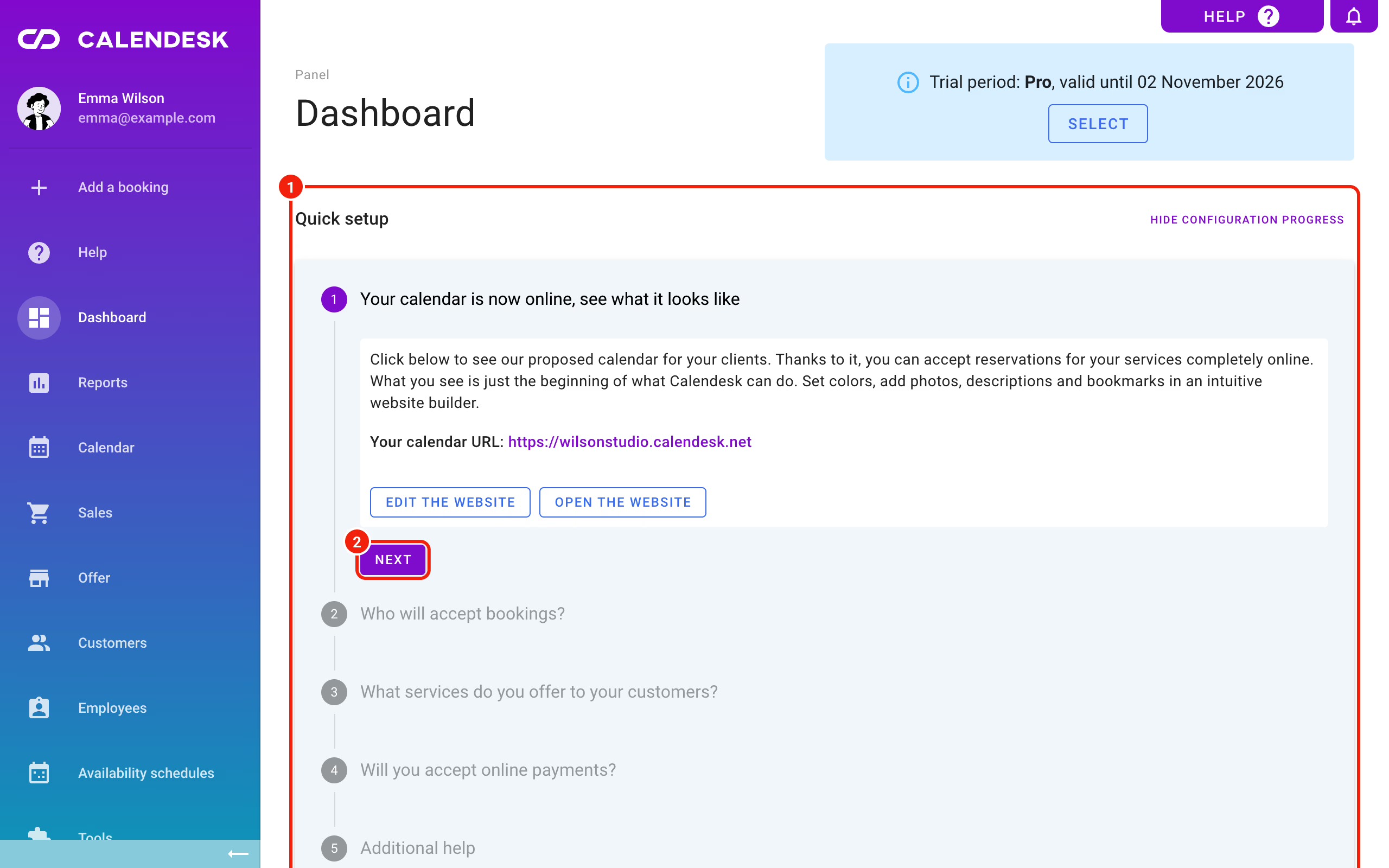
Move between steps with Next. Every step is optional, but going through them in order is the fastest way to start taking bookings. Once you're set up, hide the list with Hide configuration progress. You can bring it back any time with Show configuration progress.
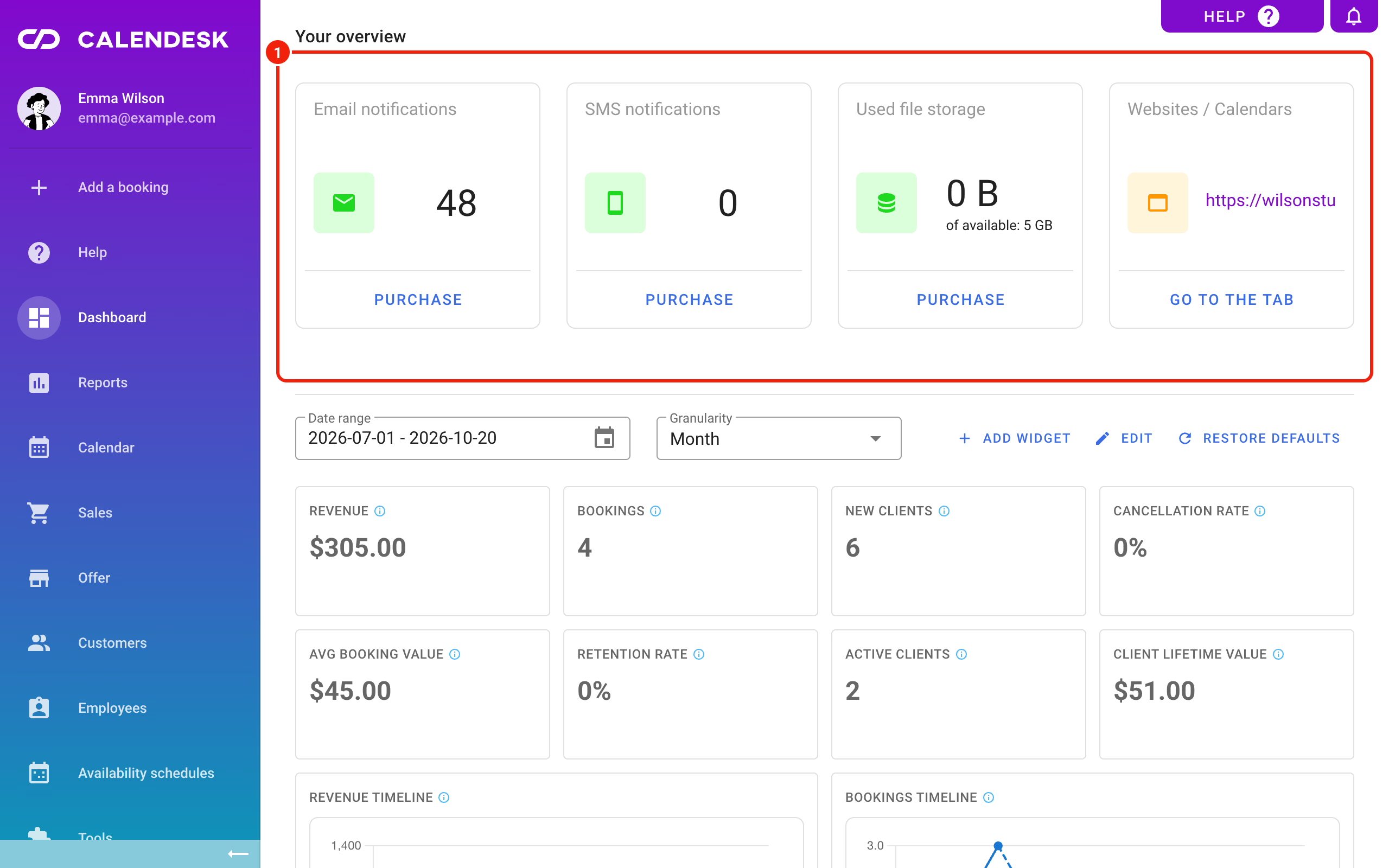
Your overview
Below Quick setup is Your overview: cards with your remaining Email notifications and SMS notifications, Used file storage, and links to your websites and calendars. Running low on notifications? Top up straight from the card with Purchase.
Statistics widgets
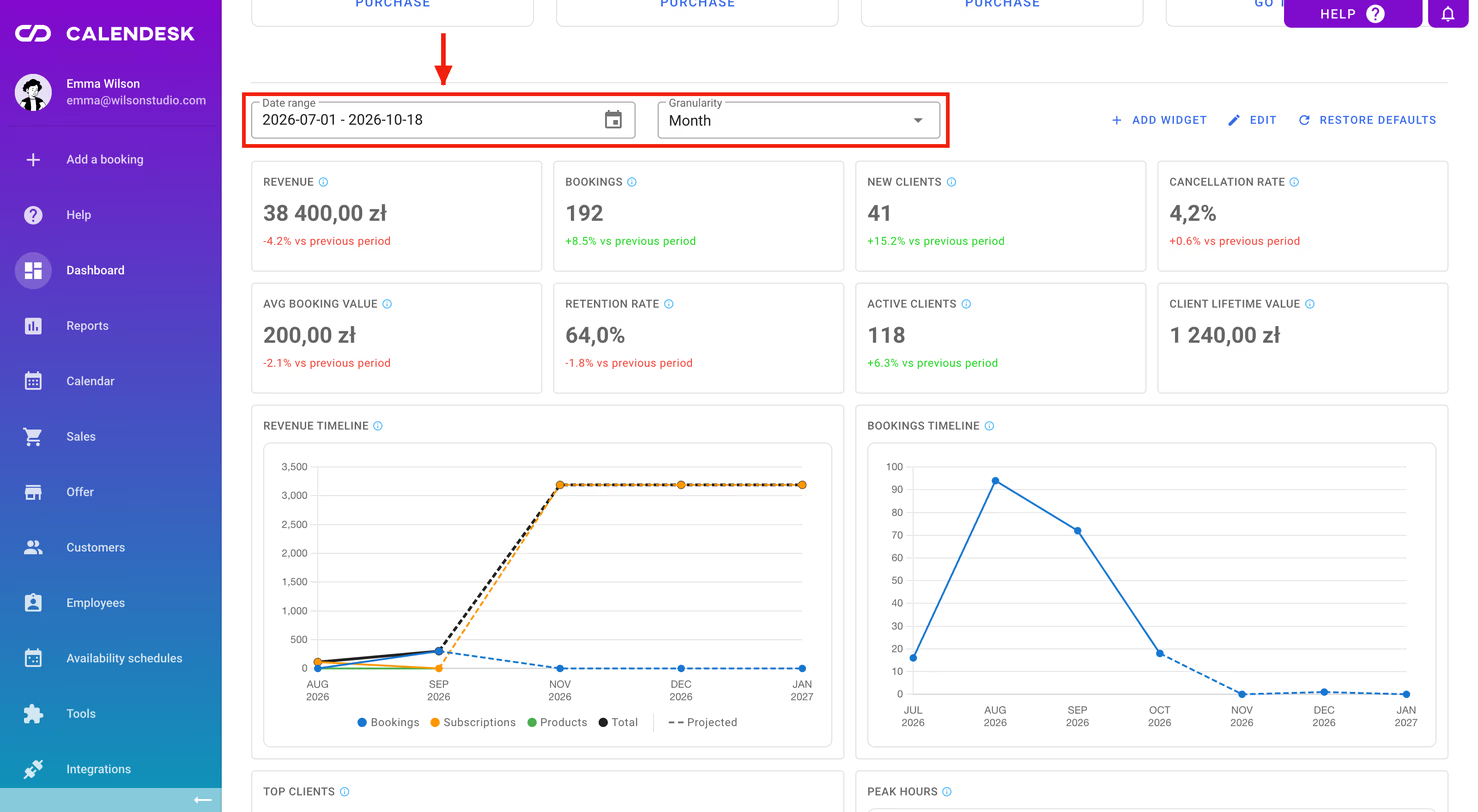
Further down are widgets with your statistics. By default you'll see:
- key numbers: Revenue, Bookings, New clients, Cancellation rate, Avg booking value, Retention rate, Active clients and Client lifetime value,
- trend charts: Revenue timeline and Bookings timeline,
- Top clients and Peak hours, the days and hours when clients book most.
Choose the period in Date range and how to group the data in Granularity (Day, Week or Month). Each key number also shows the change vs previous period, so you can see straight away whether things are going up or down.
How do I customise the dashboard?
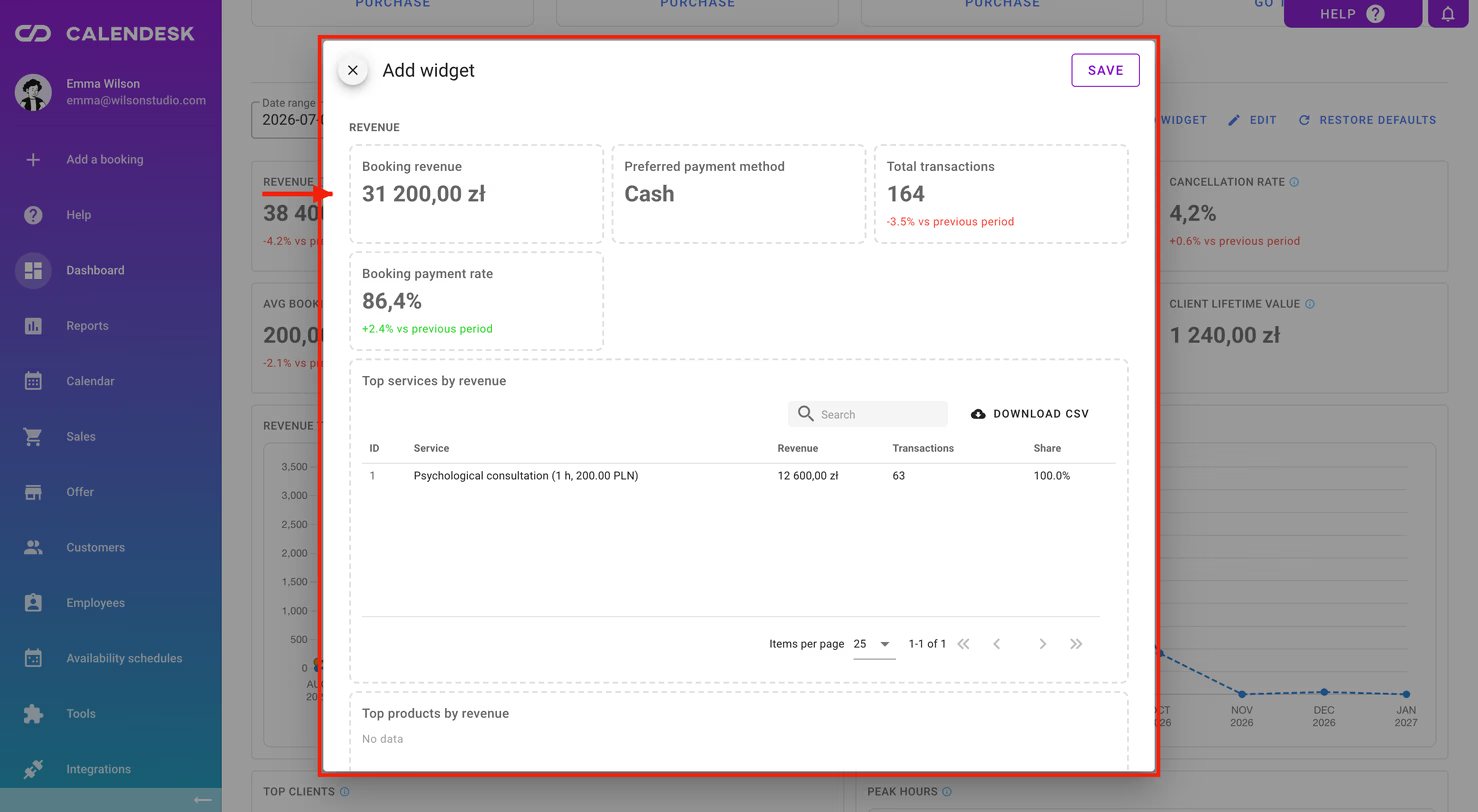
- Add widget opens a list of widgets grouped into Revenue, Bookings, Subscriptions, Products, Clients and My team. Pick the ones you need.
- Edit lets you drag widgets into a new order or remove the ones you don't use. Save your layout with Save.
- Restore defaults brings back the default set of widgets. Your current layout will be lost.
Need a deeper look than the dashboard gives you? Go to Reports. More in Reports in Calendesk.