How to preview service availability in the admin panel?
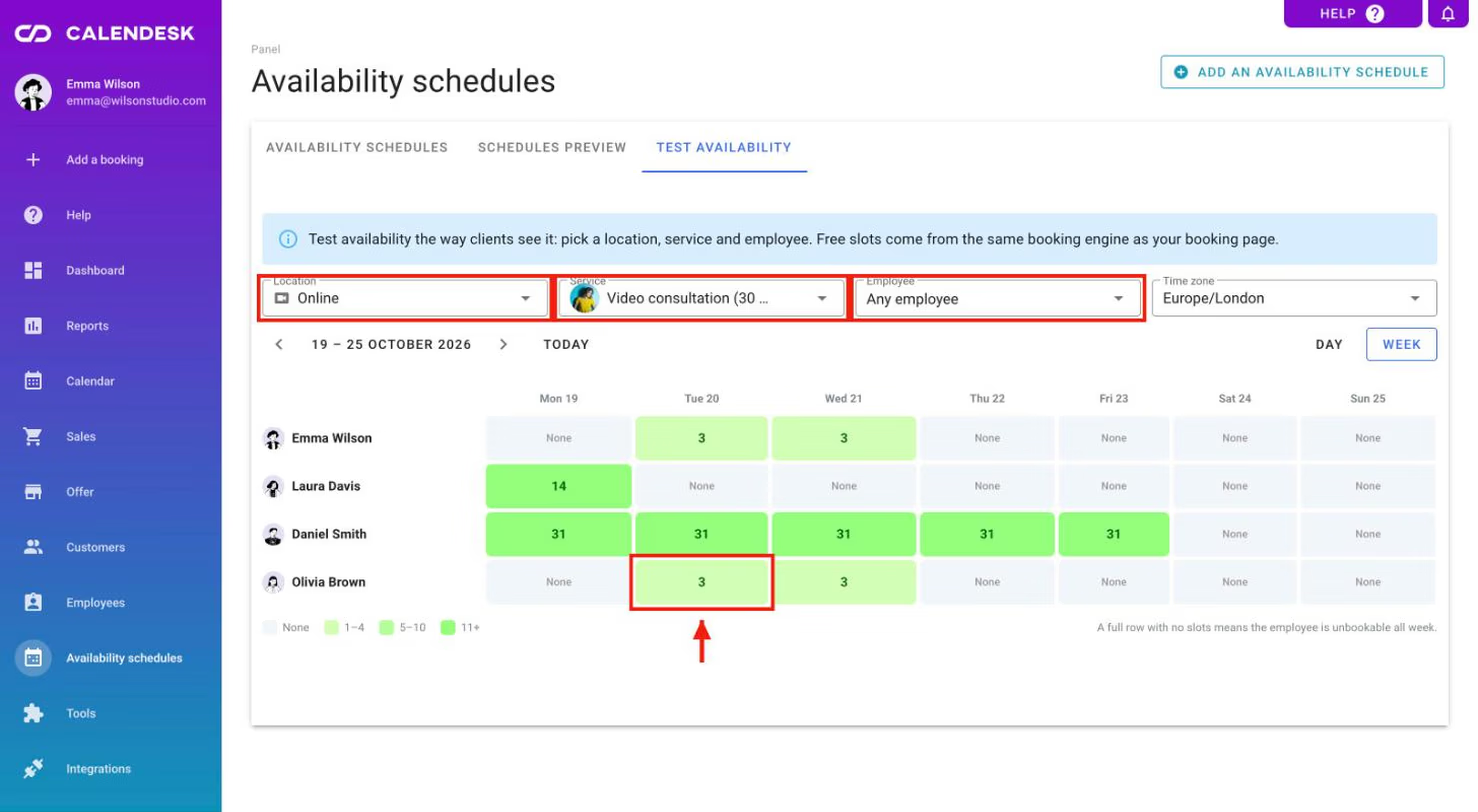
The quickest way to preview availability is the Availability schedules - Test availability tab. Its free slots come from the same booking engine as your booking page, so you see exactly what your customers see.
- Pick the Location, Service and Employee. If any employee will do, leave Any employee.
- Switch views with Day and Week. The week view shows how many free slots each day has. A full row with no slots means the employee can't be booked all week.
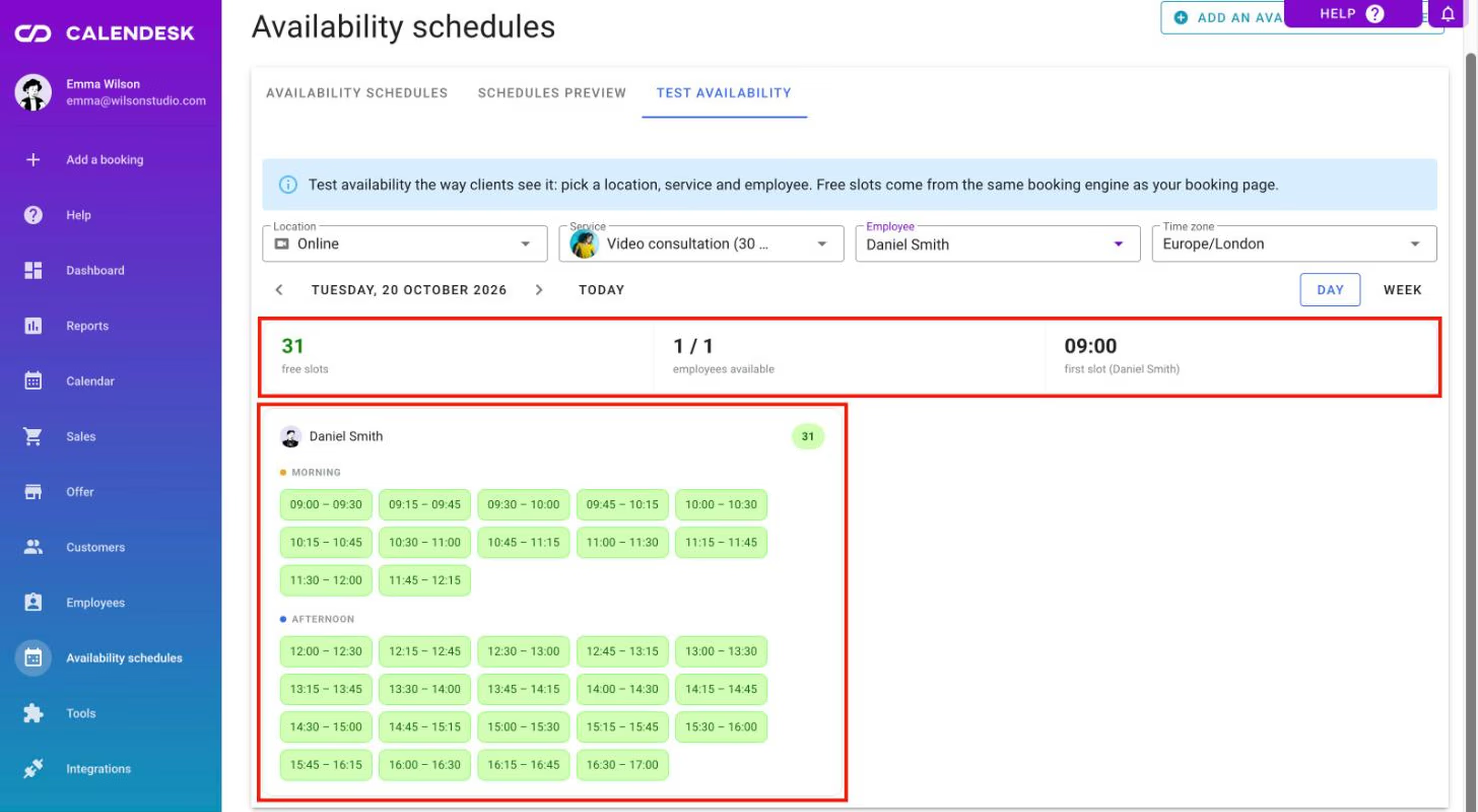
- The day view shows the first slot, how many employees are available, and all free times, grouped into morning, afternoon and evening. Only the parts of the day that have slots are shown.
If a day says customers won't see any time, check the employee's schedule in the Schedules preview tab, or their working hours.
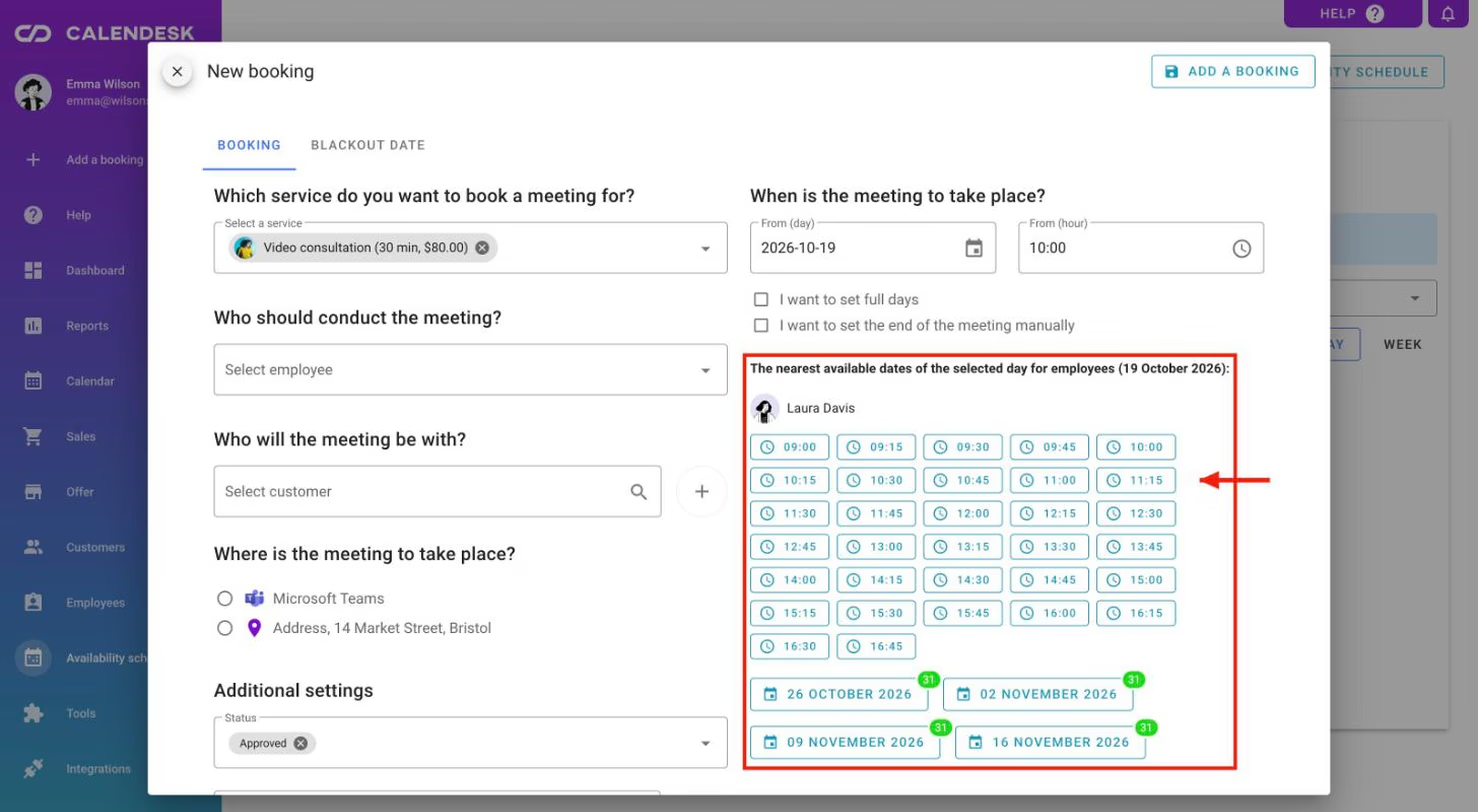
You'll also see availability in the new booking form. Click Add a booking in the left menu and choose a service. Under the date, a list of the nearest available times appears: every employee with free times on that day, and below it the next days that have free slots. Clicking a time or a day fills it in on the form. For group services, each time shows how many places are still free.
Which schedule applies on a given day?
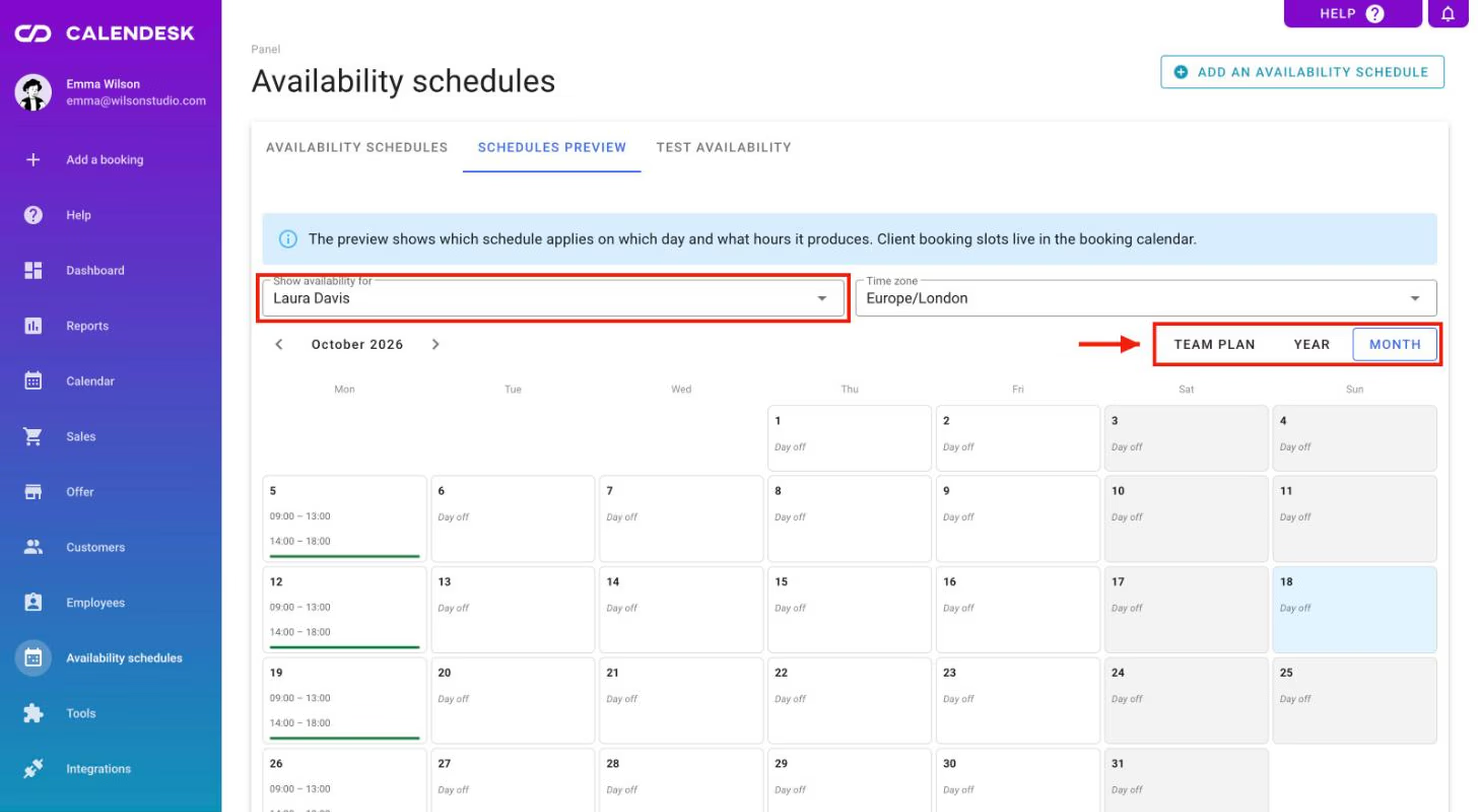
The Schedules preview tab shows which schedule applies to an employee or a service and what hours it produces. Choose the employee or service in Show availability for, then a view:
- Year: the whole year with working days and days off,
- Month: the schedule's hours day by day,
- Team plan: the schedules of all employees or services in one view.
If an employee has no assigned schedule, you'll see a notice instead of a calendar: the working hours from their profile apply. If a service has no schedule of its own, its times come from the schedules of the employees who provide it.
To learn how to create and assign schedules, read How to manage employee and service availability schedules?