What are labels, groups, and resources and how to manage them?
Labels
Settings – Labels is the section where you can add labels (tags) that allow employees to share specific information with each other, aiming to improve the level of customer service. It is a quicker and more readable way to add descriptions to bookings. Simply add a few labels that characterize a customer's booking, and you'll be able to universally describe the requirements or habits of your guests.
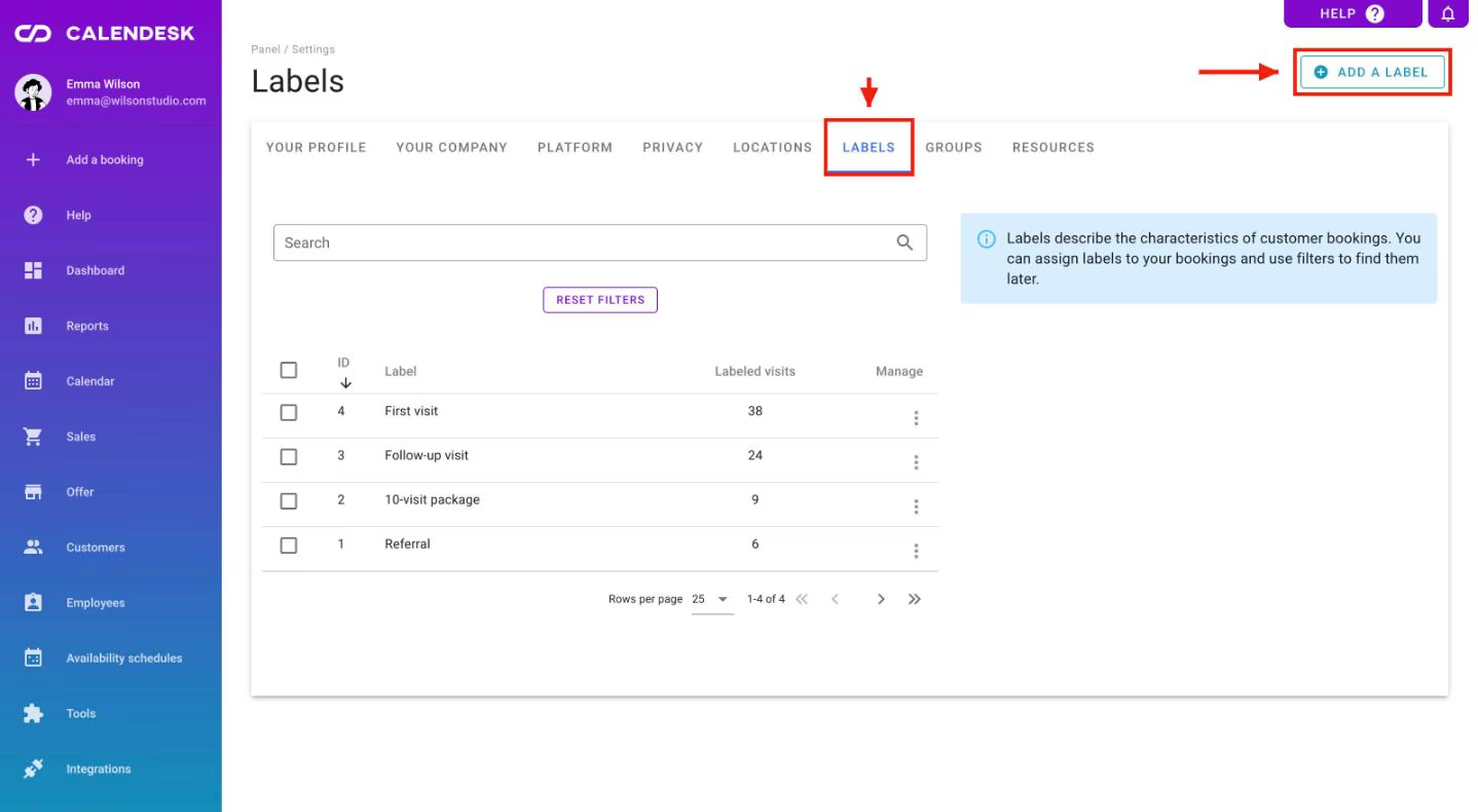
Adding labels
Using the button marked in the image above, you can add a new label. In the Labels column, you will see all the labels you have created so far. In the adjacent column, Labeled visits, you can see how many times the selected label has been used. This allows you to track how your customers are being served and what their most frequent requirements are.
Editing and deleting labels
On the right side of the Labeled visits column, you will see a button with three vertically aligned dots. Clicking on this button will give you the option to delete or edit the label. If the label that needs editing has already been used, the change will be applied to every service where that label has been used. The second option allows you to delete the selected label. Once you click the button, the application will ask if you are sure you want to delete the chosen label. This action will be effective once you confirm your choice. As a result, all services that had the deleted label applied will no longer have it. This is an irreversible action, however, you can still create a new label.
You can learn more about services in the article How to acces and manage services?
Groups
Settings – Groups is a place where you can group customers. Groups act as labels that facilitate communication and improve customer service. They allow you to easily filter your customers in the Customers tab. Their shared characteristics help you generate statistics, enabling you to draw conclusions and improve your business operations.
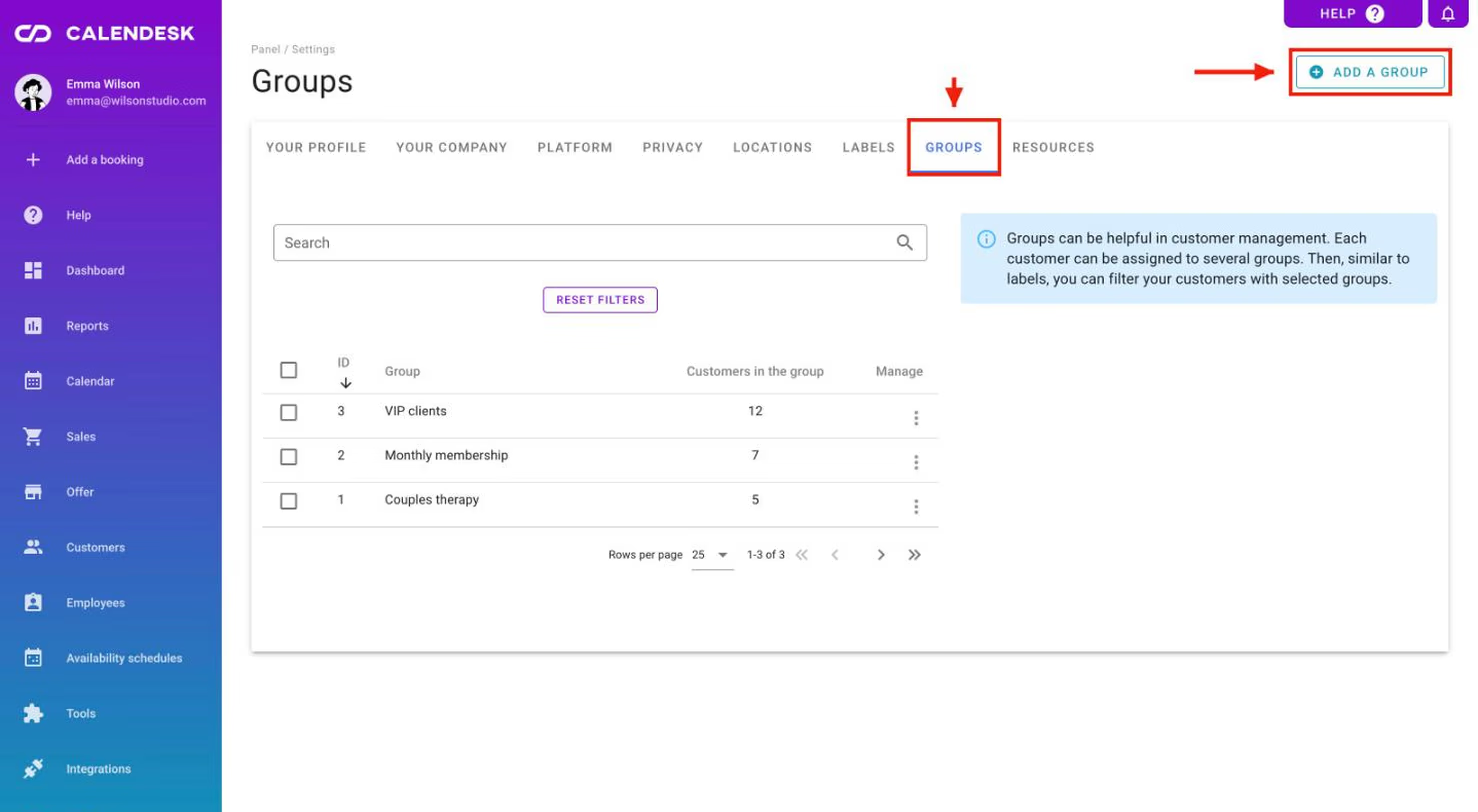
Adding groups
Using the button labeled Add a group in the image above, you can create a new group. In the Group column, you can see all the groups you have created so far. In the Customers in the group column, you can see how many times a customer has been assigned to a specific group. This allows you to filter your customers and analyze who they are.
Adding Clients to Groups
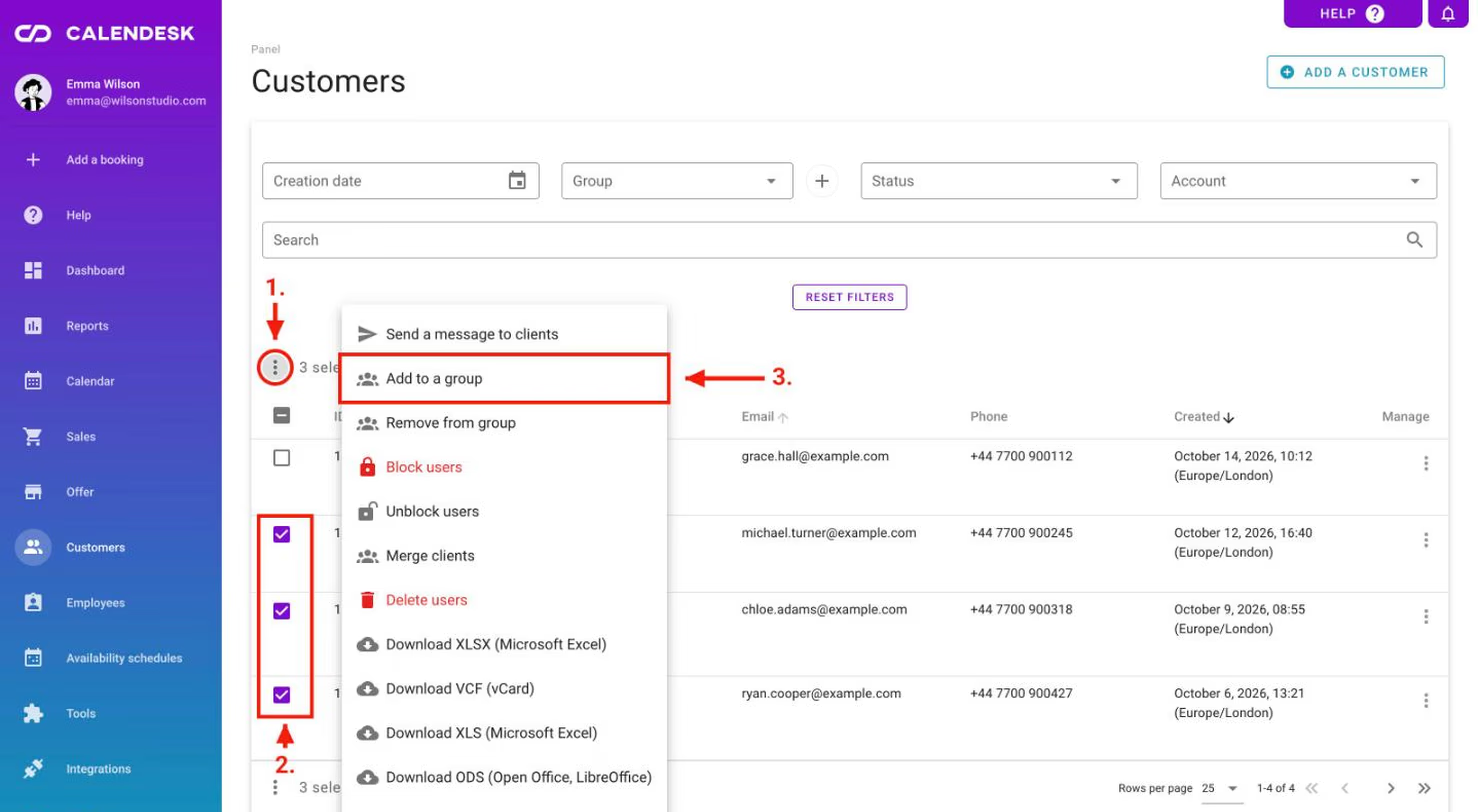
To add customers to a group, select them by ticking the checkboxes next to their names in the Customers tab. Then, at the bottom, click the three-dot button and choose the Add to a group option from the list.
Editing and Deleting Groups
On the right side of the Group section in the Settings tab, you will find the previously mentioned button. One of its options allows you to edit an already added group. If the group requiring edits has already been used, any changes will be applied to all clients associated with that group.
Another option is deleting the selected group. When you choose this option, the system will ask you to confirm whether you want to delete the group. Once confirmed, the deletion will take effect, and all clients previously assigned to that group will lose their group association.
You can learn more about clients in the article How can I access and manage customers?
Resources
The last of these tabs is Settings – Resources. A resource is something a booking needs and you only have so many of: a room, a hall, a piece of equipment. When all of it is taken, customers see no free time.
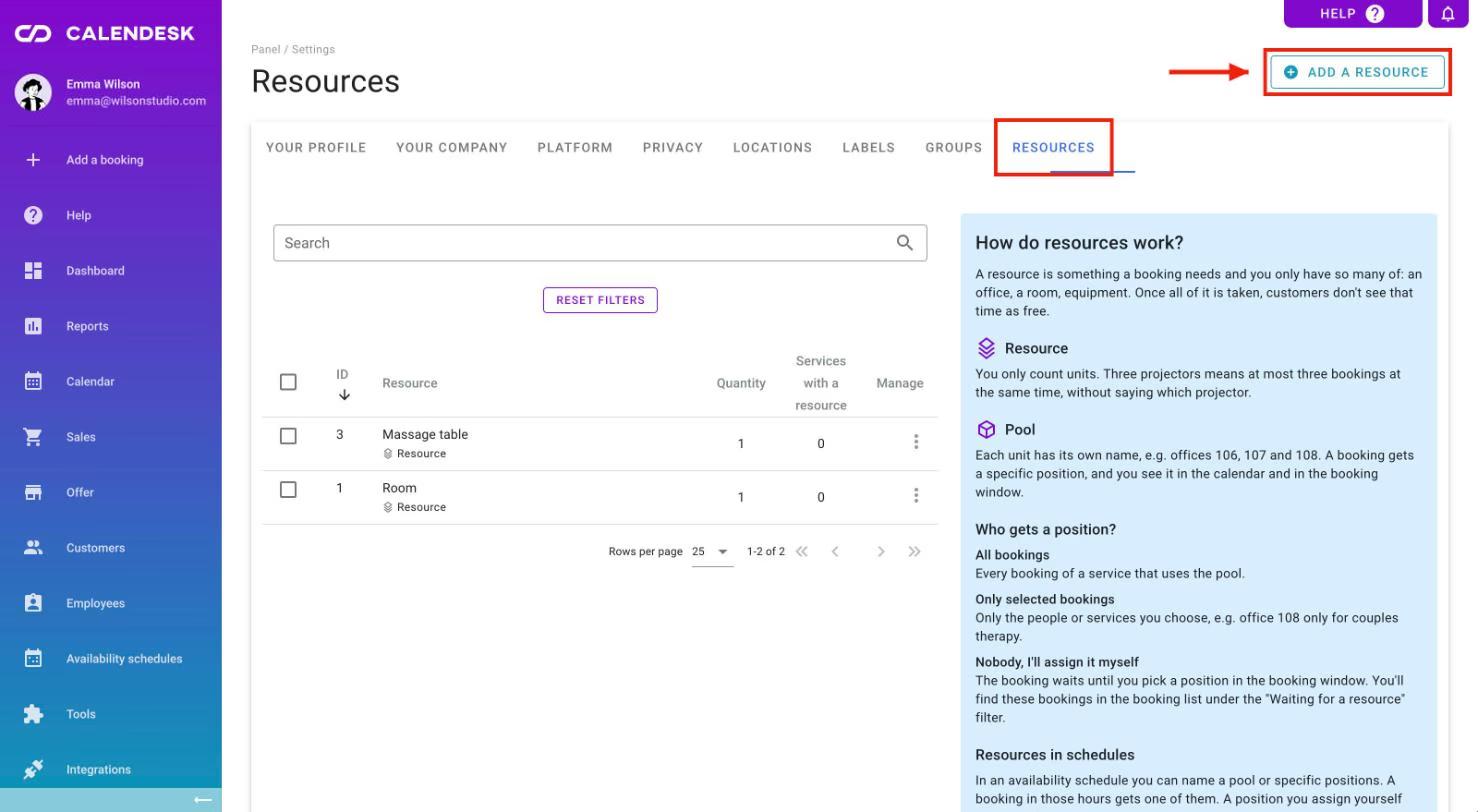
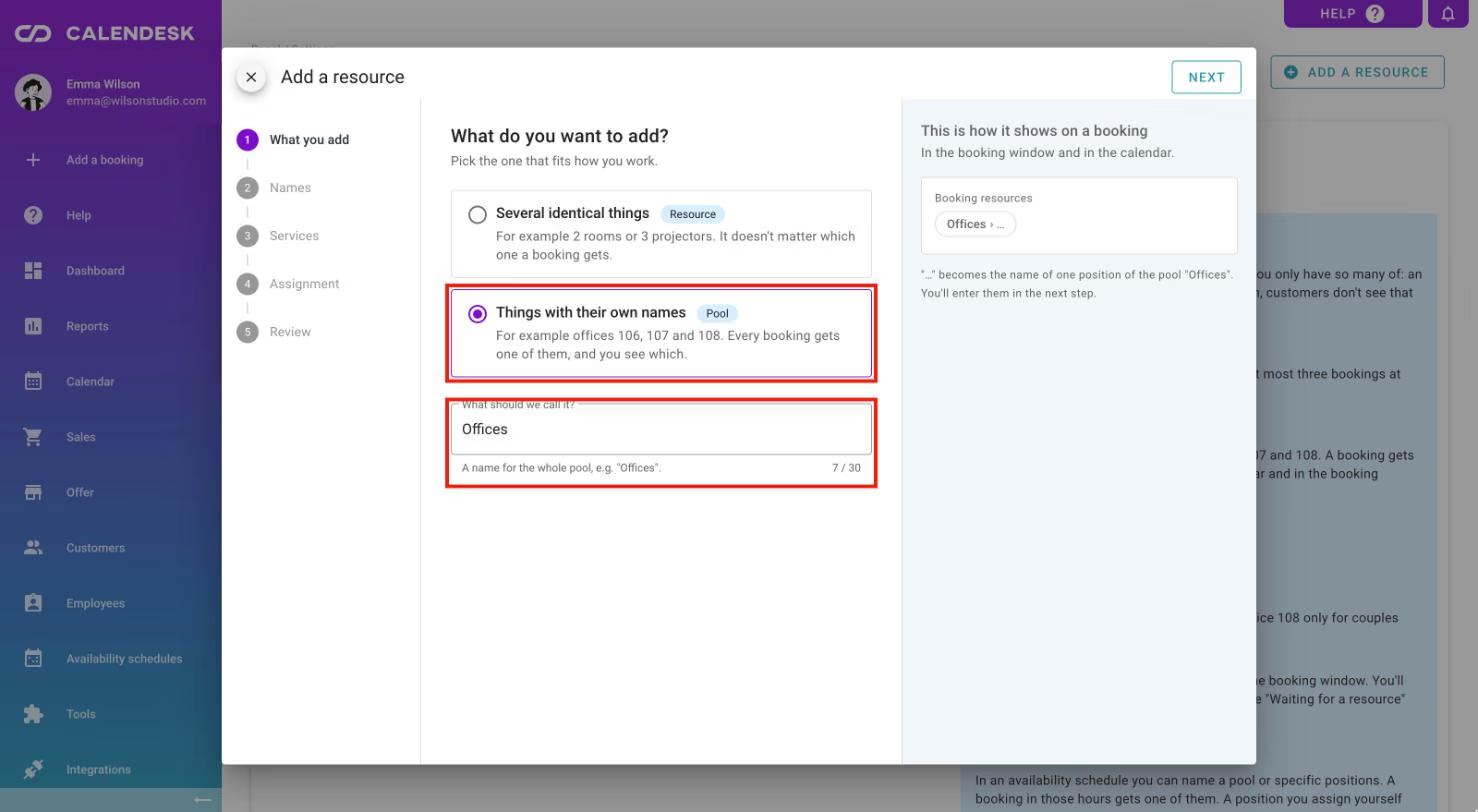
You add a resource in a step-by-step wizard. First you choose what you are adding:
- A resource: several identical things, for example 3 projectors. Only the count matters, so three projectors means at most three bookings at the same time.
- A pool: things with their own names, for example rooms 106, 107 and 108. Each booking gets a specific position. You see it in the calendar and in the booking window, and the customer sees it with their booking.
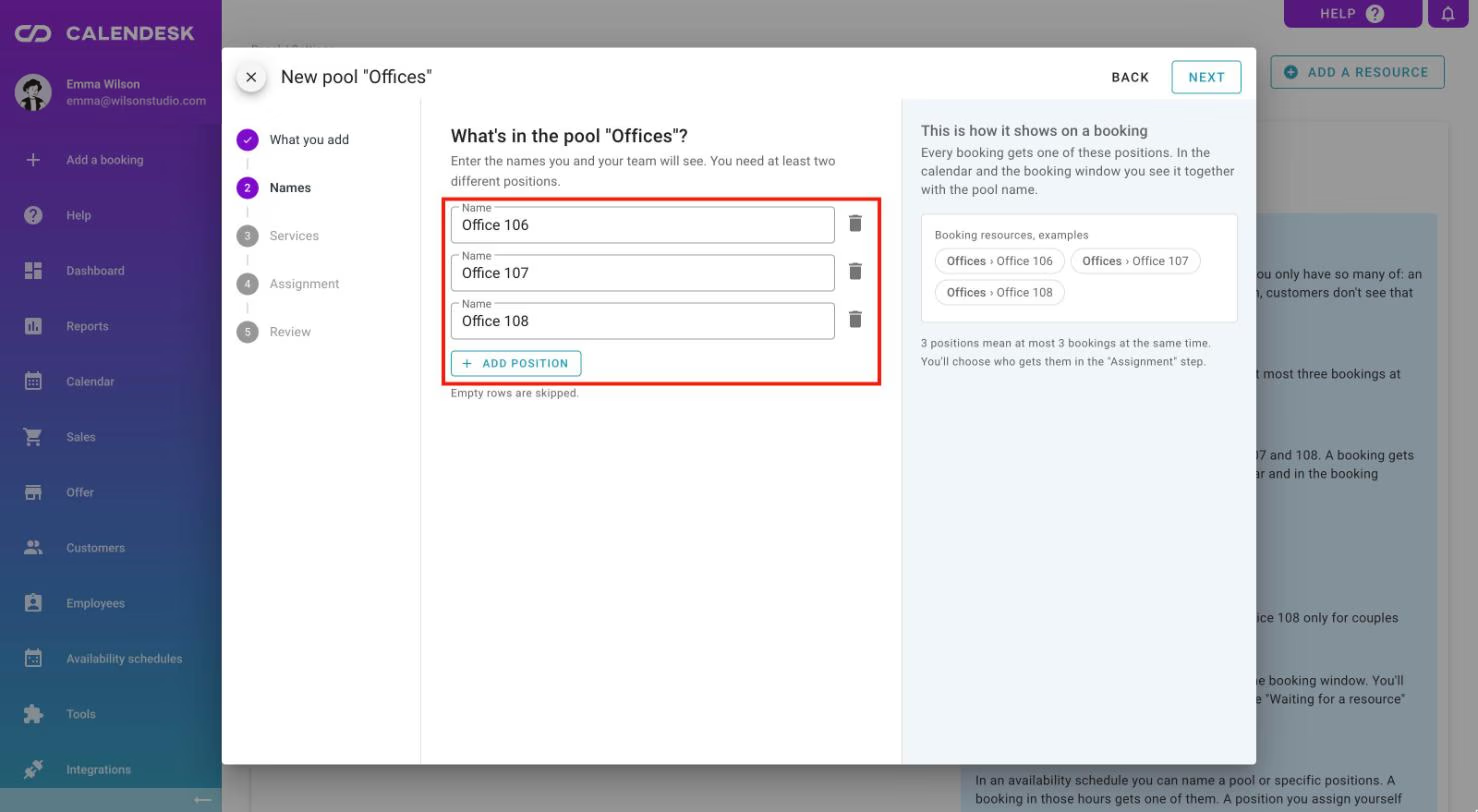
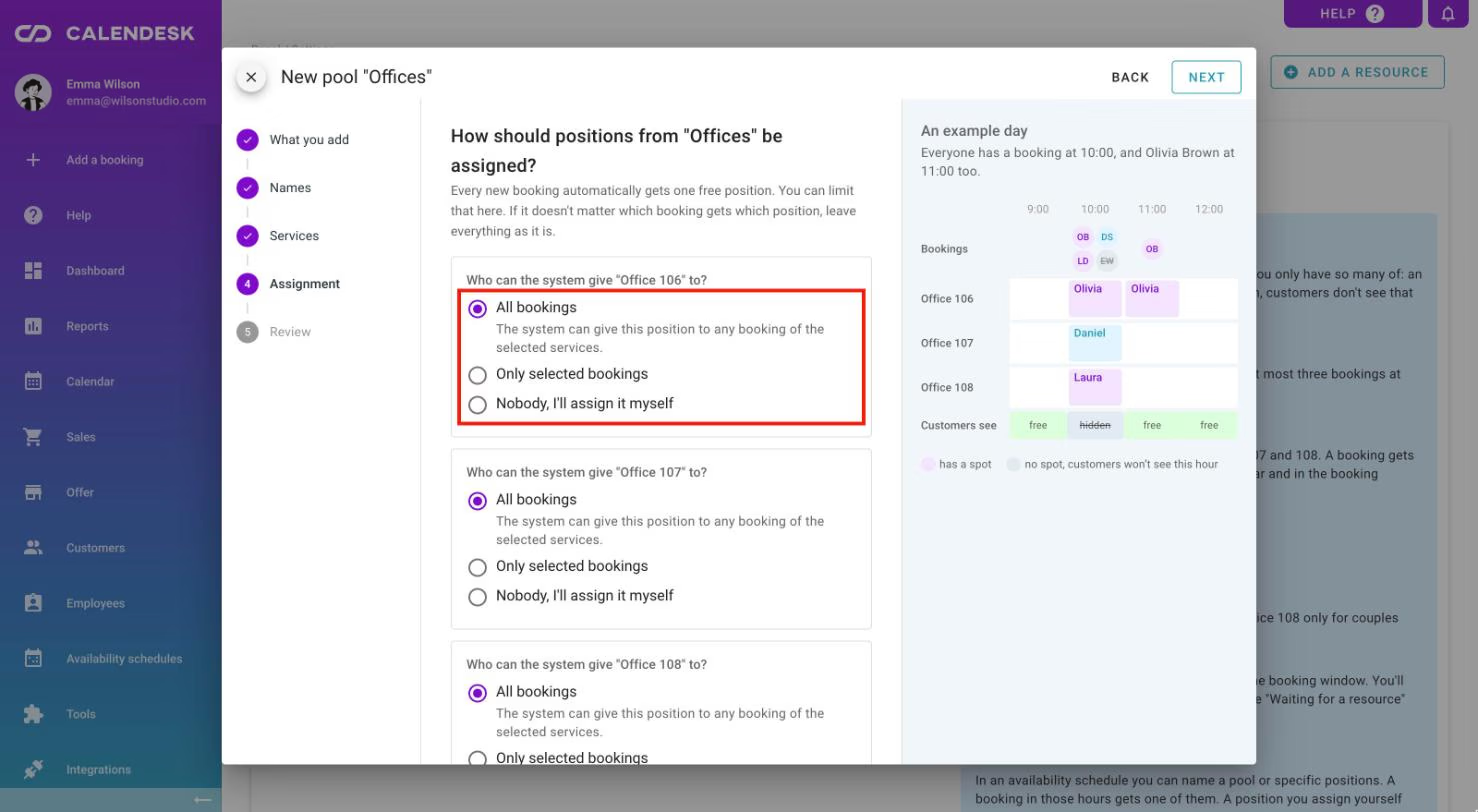
The wizard also asks who gets positions from a pool: every booking, only chosen employees or services (for example room 108 for couples therapy only), or nobody, if you prefer to assign them yourself. Bookings waiting for you to assign a position are on the booking list under the "Waiting for a resource" filter. For a group service you choose whether each participant takes one place or the whole group takes one.
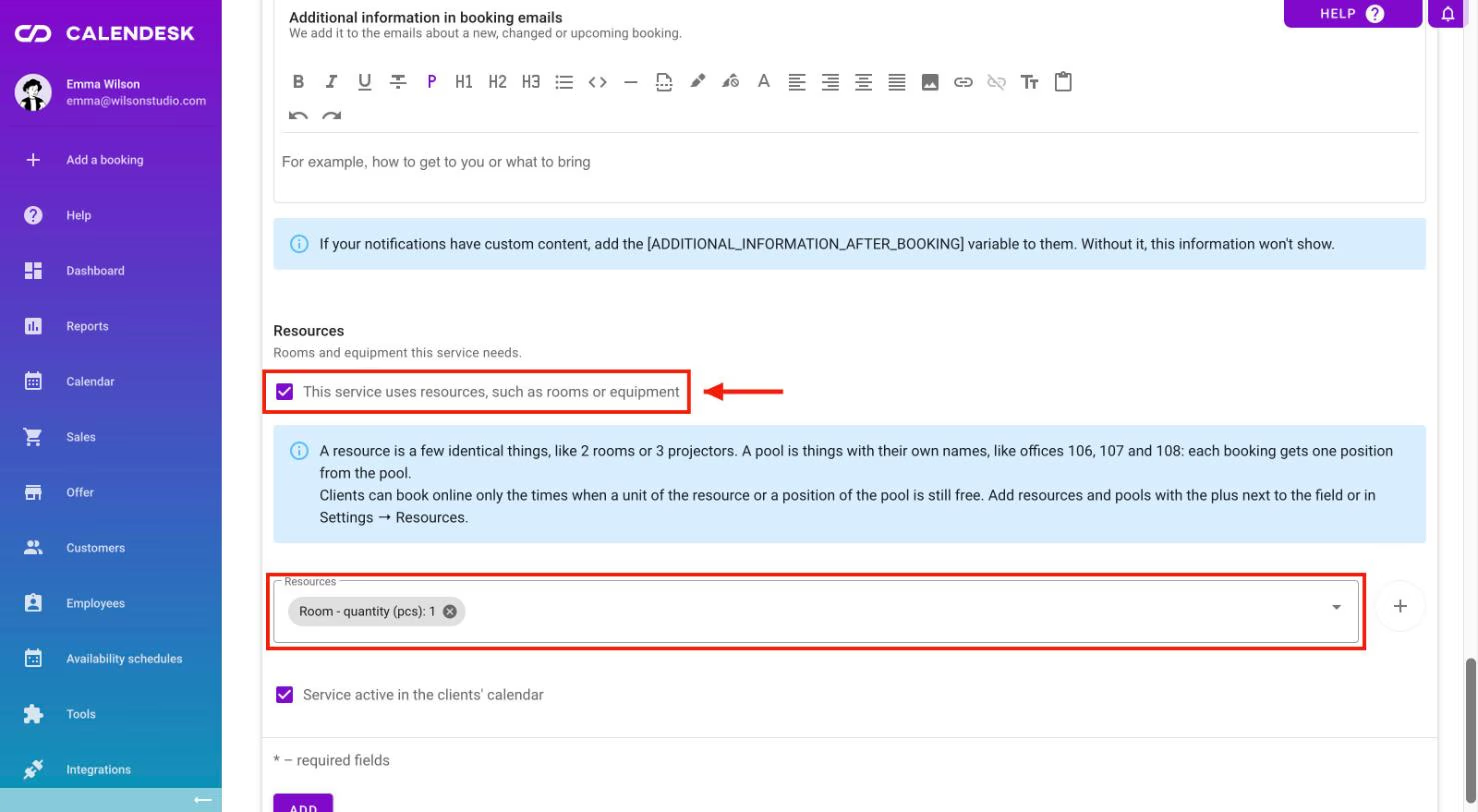
You can also assign a resource to a service when you edit it in Offer – Services: in the Resources section, tick This service uses resources, such as rooms or equipment and pick the resource from the list. If you don't see that section, turn on Show advanced settings.
In an availability schedule you can point to a pool or to specific positions. A booking in those hours gets one of them.
What your customers see, and what you see
The booking page shows only as many free places as can really be booked, also when several employees share one pool.
In the panel you can still add a booking when a resource is taken. Calendesk warns you before you save and tells you which resource blocks the time. If you save anyway, the booking gets no position from that pool and lands under "Waiting for a resource".