How can I access and manage events?
Sales: Bookings
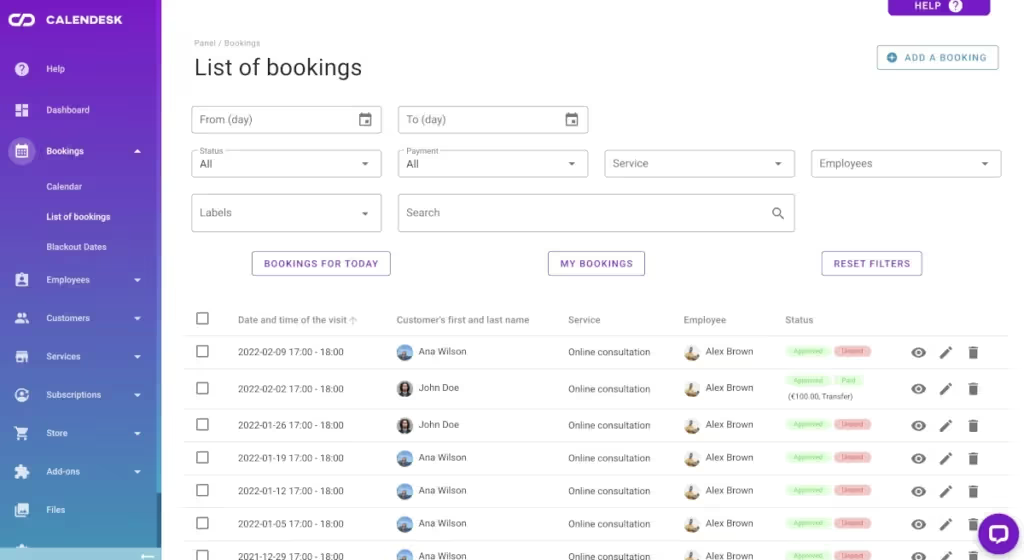
In Sales: Bookings you’ll find all your bookings in one table. Use the filters to show only the ones you need.
Every booking has a menu in the Manage column. Depending on the booking, it offers:
- Preview: all booking details,
- Edit,
- Pay or Payments,
- Duplicate,
- Send a message to the client or Send a message to the employee,
- Cancel,
- Delete.
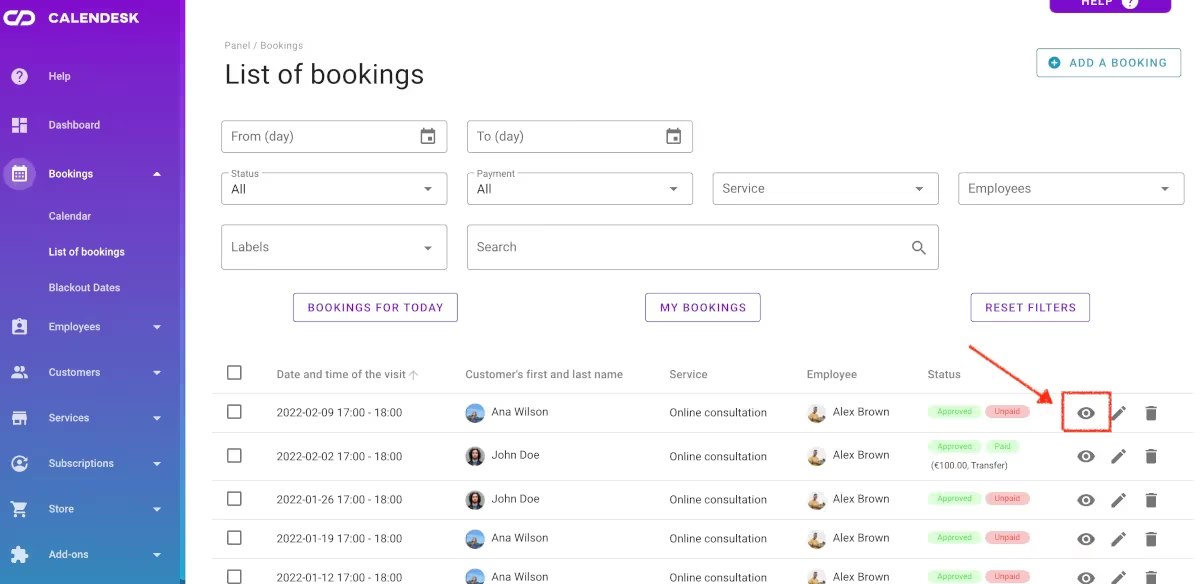
To see all the details of a booking, choose Preview in its Manage menu. Here, you will find all information about the booking, such as payment details and links to Zoom or Google Meet.
Adding a booking
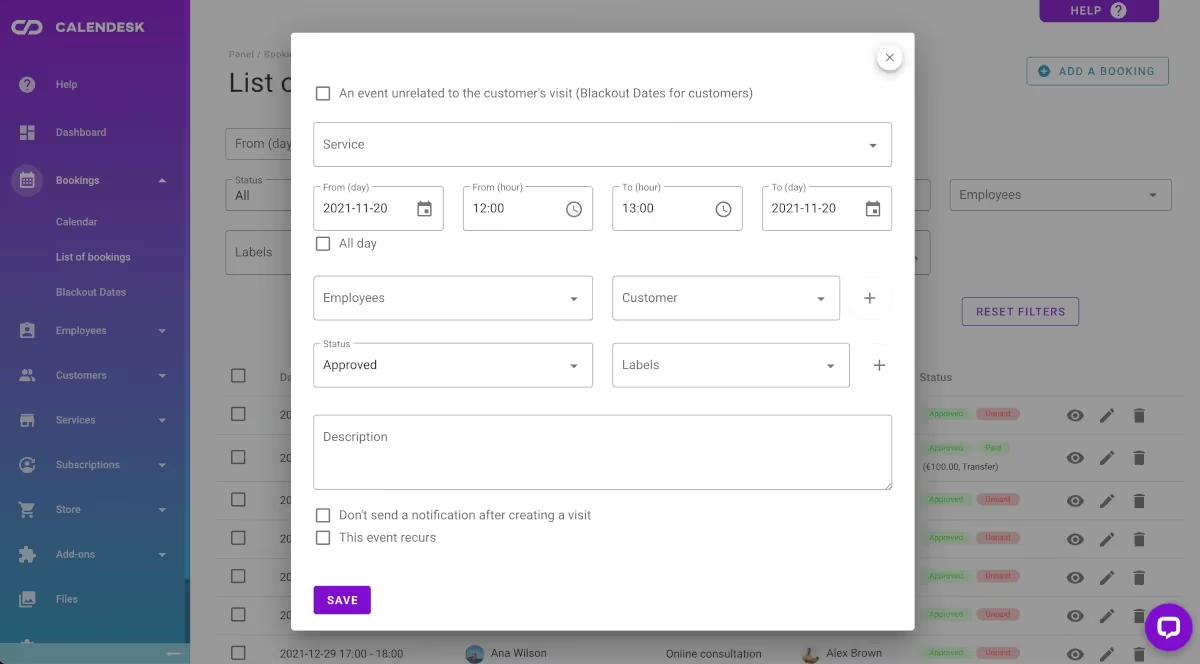
The “Add a booking” button allows you to open a booking form to enter your new booking details.
Booking settings
1. Blackout date: if what you’re adding isn’t a customer visit, switch to the Blackout date tab in the New booking window. Use it to block an employee’s time for things like training a new team member, cleaning, stocktaking or holidays.
2. Add a Label and Private notes in the booking form. Labels let you filter the booking list later and find the bookings you need fast. For more information on labels, see the article: target="_blank">What are labels, groups, and resources and how to manage them?