How to add an online booking system to WordPress?
Make sure you have read the article about generating your code for your online booking system: How to add an online booking system to your website?
Once you have copied your code from the website builder, please go to your WordPress and paste it there.
How to add an online booking system to WordPress?
Calendesk offers three ways to use the calendar on your website:
Inline Embed – an HTML frame
Your calendar as a permanent element of the website (a frame). Your customers will see the calendar right away.
Popup Widget
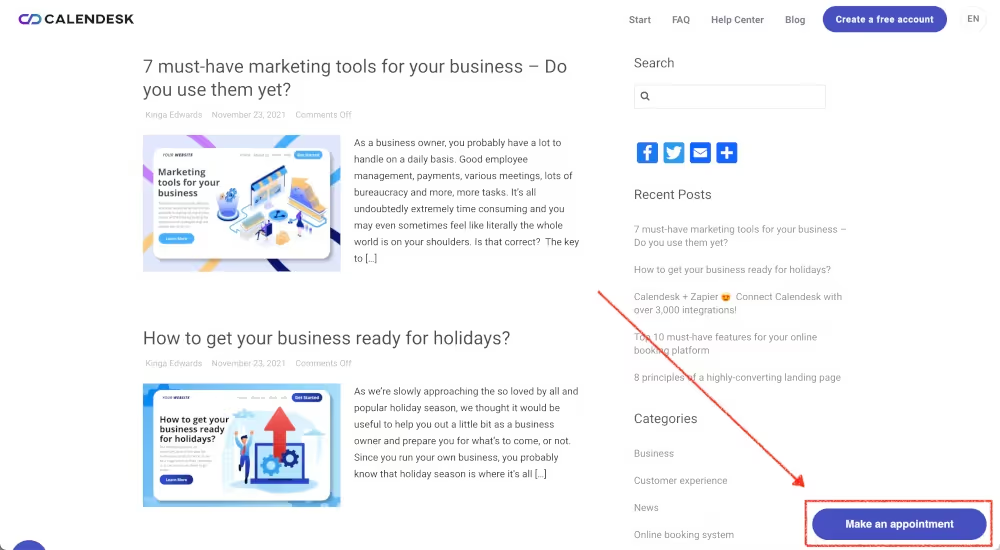
A floating button at the bottom of your page that launches your booking site as a popup.
Popup Link
A text link on your website in places you want to launch your booking site as a popup.
Inline Embed and Popup Link require placing their code in two places: your website’s header and the body of your website.
Inline Embed or Popup Link
These two options come with two pieces of code: the header code and the widget code.
In your WordPress admin, go to Plugins → Add New, search for “WPCode”, click Install and then Activate.
Go to Code Snippets → Header & Footer, paste the header code into the Header box and click Save Changes.
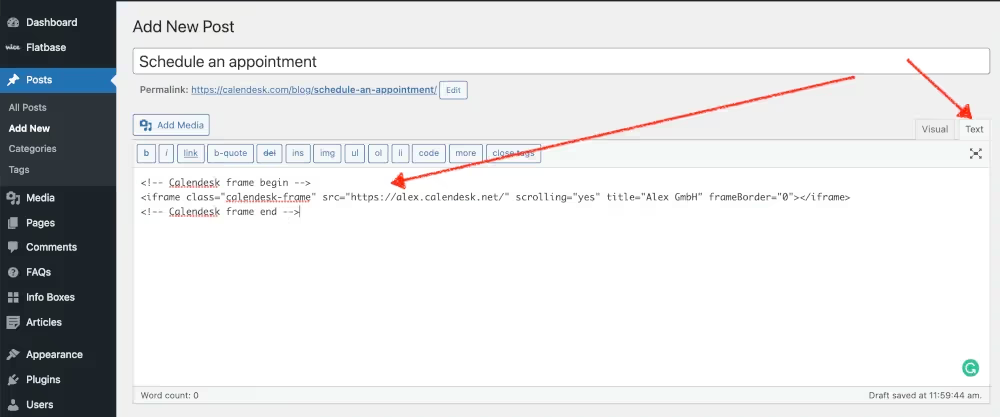
Open the page where you want the calendar, click “+” and add a Custom HTML block where it should appear. If you use Elementor, the element is called HTML.
Click Edit HTML, paste the widget code and update the page.
A Popup Widget
Install and activate the WPCode plugin as described above.
In Code Snippets → Header & Footer, paste the code into the Footer box and click Save Changes.
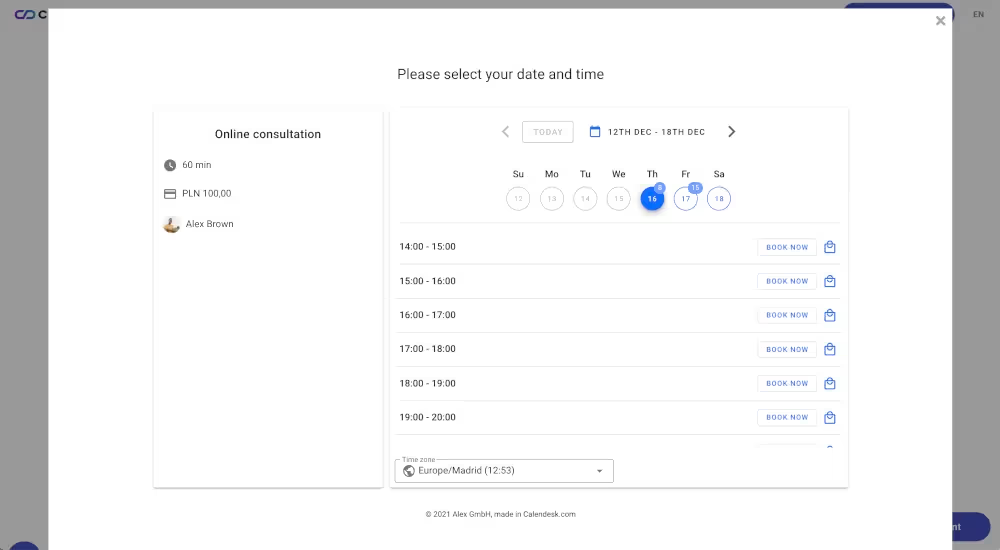
That’s it. The button now shows on every page of your website.
Button on the left side?
Before you copy the code, set Button position to Bottom left corner in the code generator.
Good to know
On WordPress.com, pasted code works only on paid plans.
If your site uses a caching plugin, clear its cache after saving, or you may not see the change right away.