How to set your custom domain for your website?
Once published, your website runs at a test address on calendesk.net. Customers remember it more easily at your own address, for example www.wilson-studio.test. Calendesk doesn't sell domains, so you buy one from a provider first and then connect it to your website in a few steps.
This article uses the sample domain wilson-studio.test throughout. In your panel, type your own domain instead.
Step 1. Buy a domain
You can buy a domain from any provider, for example GoDaddy, Namecheap or OVH. Search for a free name, add it to your cart and pay. After the purchase, the provider usually needs a moment to activate the domain.
You don't need to buy hosting or an email inbox for the website to work. Calendesk hosts your website.
Step 2. Enter the domain in the website builder
In the Calendesk panel, go to Tools → Websites and open your website in the builder. Click the website address at the top of the preview, and in the Your website address window choose Configure the domain and Add your own domain.
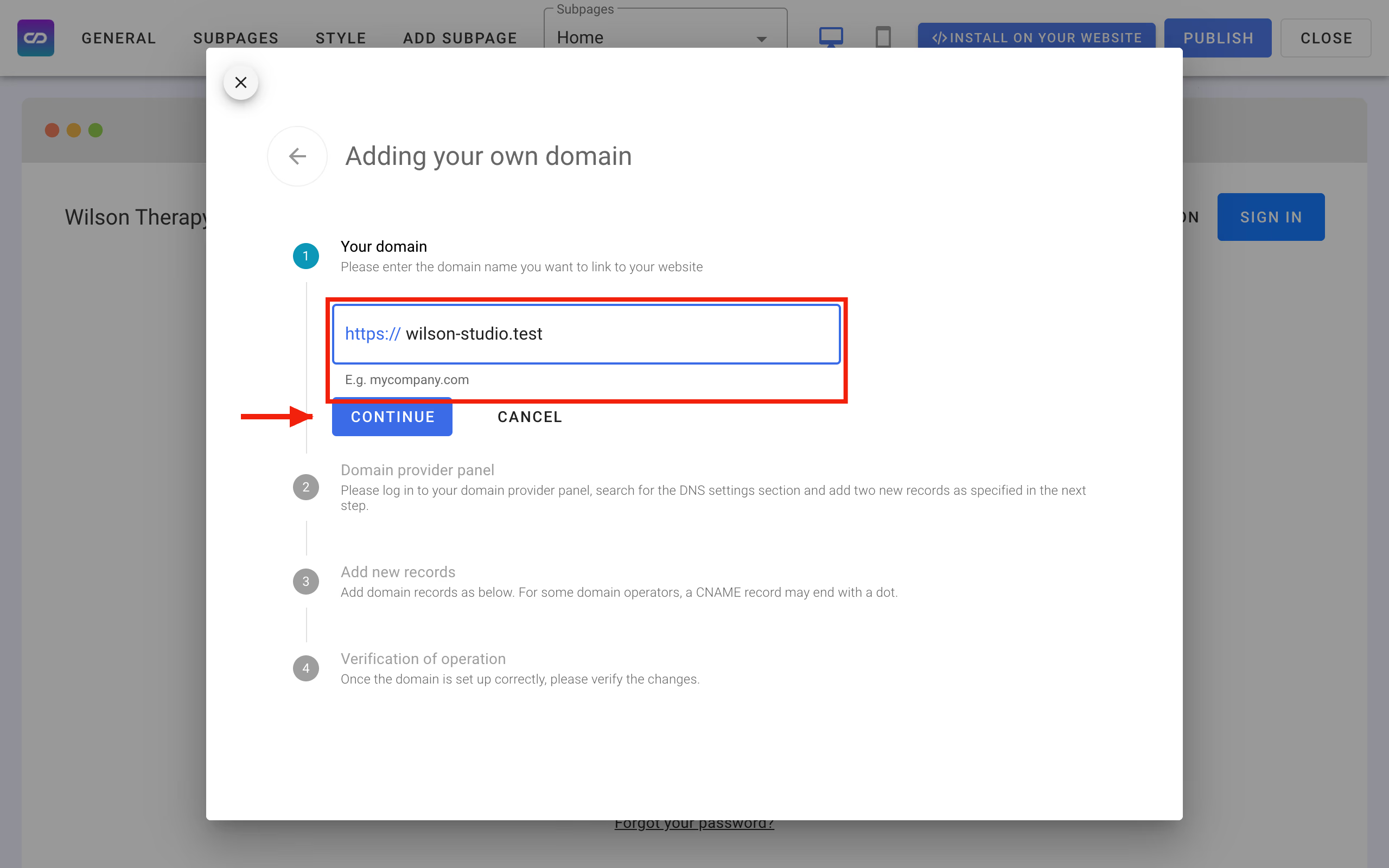
In the Your domain step, type the domain name without "https://" and without "www", and click Continue.
Step 3. Add two records at your domain provider
DNS records are entries that tell the internet where your website lives. You add them in the panel of the provider you bought the domain from. Sign in there, pick your domain and find the DNS settings. Depending on the provider they're called, for example, DNS Management or DNS zone.
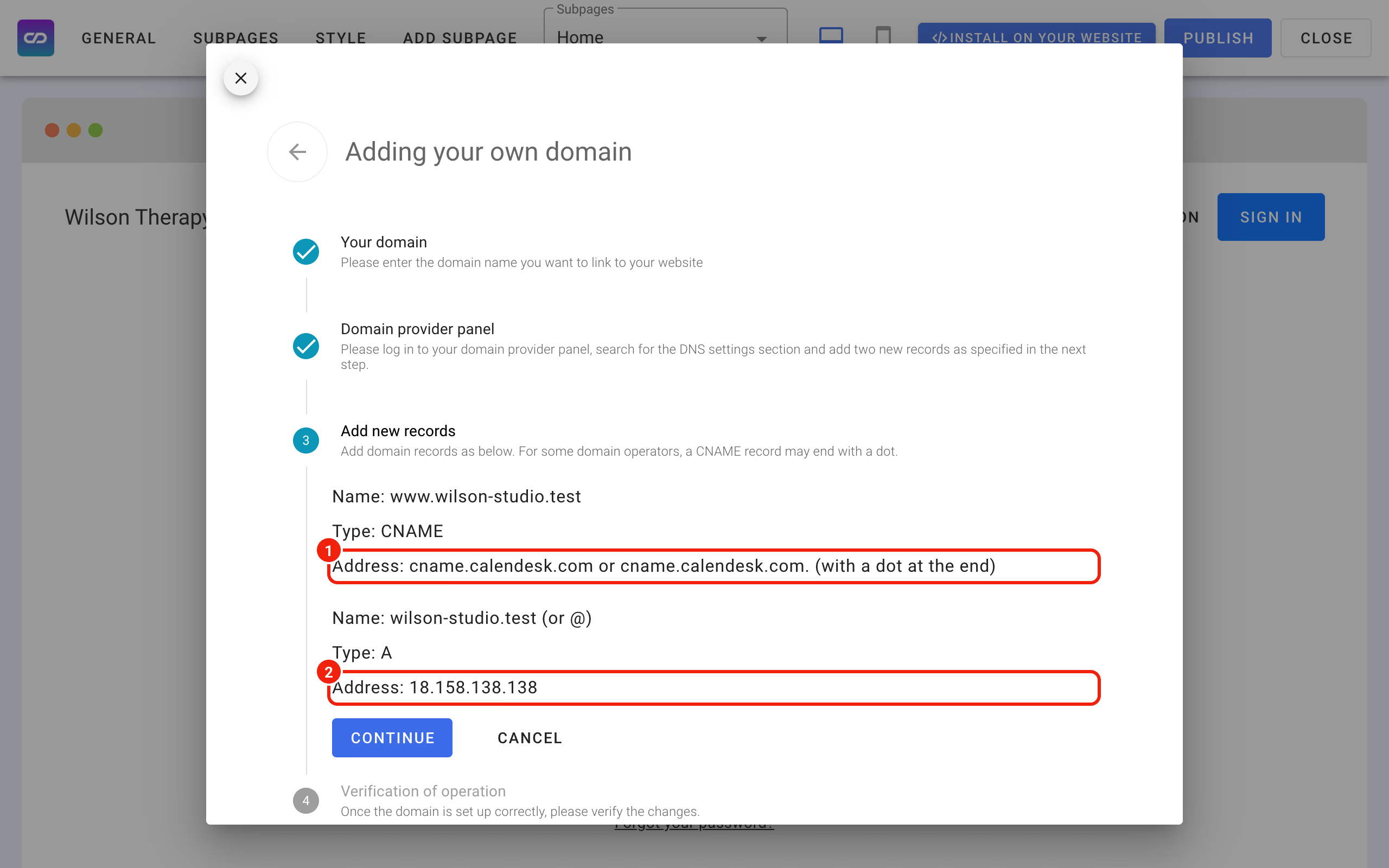
Add these two records exactly as in the table. The builder shows the same values in the Add new records step.
| Type | Name (host) | Address (value) | What it's for |
|---|---|---|---|
| CNAME | www | cname.calendesk.com. | the address www.wilson-studio.test |
| A | @ (or leave empty) | 18.158.138.138 | the address wilson-studio.test without "www" |
Some providers want a dot at the end of the CNAME address, others add it for you. If the panel won't accept the address with a dot, enter it without one. If the provider adds the domain name to the "Name" field by itself, type just "www".
If your domain already has another A record for "@" or another CNAME record for "www", for example from a previous website, delete it or change it to the values in the table. Two different records for the same name won't work.
Step 4. Check that the domain works
Go back to the builder and click Continue until you reach the Verification of operation step. Click Verify the operation of the domain.
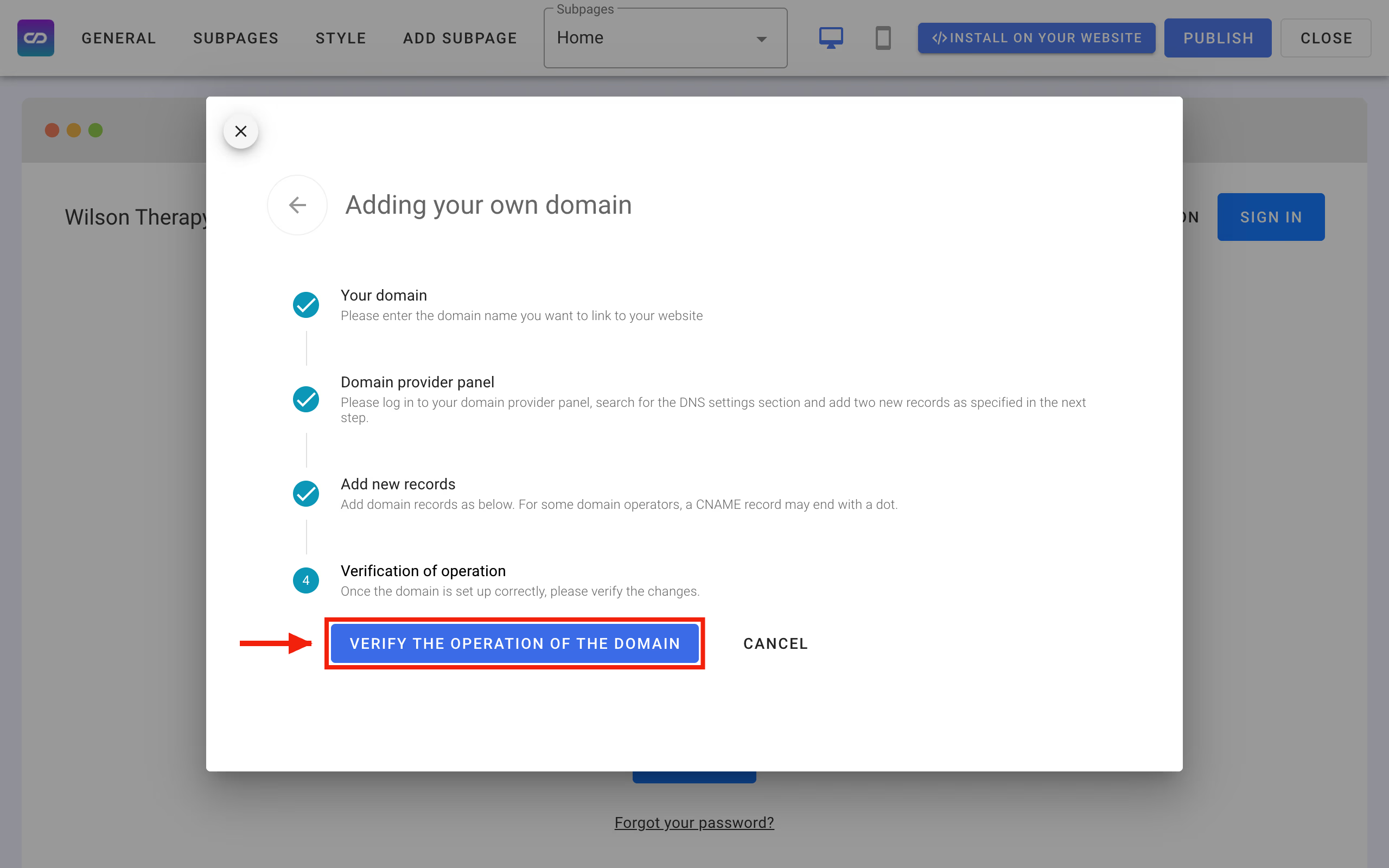
When everything is ready, you'll see The domain is working correctly. If the message says the domain is still being verified, wait about 15 minutes and try again. With some providers, DNS changes take up to a few hours to spread.
Still not working? Check in your provider's panel that both records have exactly these values and that no old record is left for the same name. If everything matches, write to us on the chat or at support@calendesk.com and include your domain name.